Event Setup
Viper — Installation — Control Panel System Setup
-
Event Setup
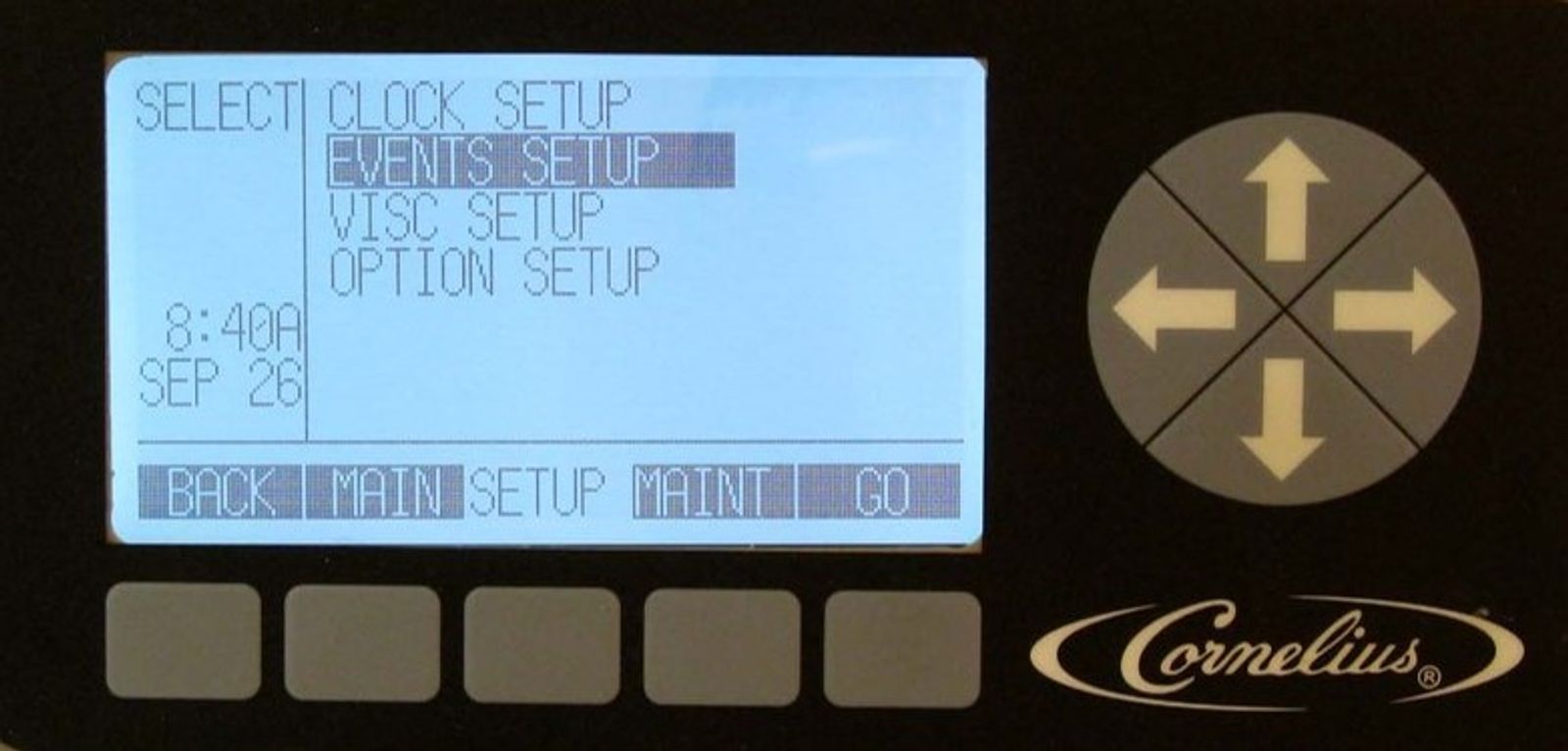
Using the up or down arrows, highlight the EVENTS SETUP field from the SETUP menu and press GO. This displays the EVENTS SETUP menu.
-
Set Sleep and Wake Up
If the store closes at night, we recommend you program the Viper to go to sleep at closing and then wake up one hour prior to store opening. During normal operation there is no need to power down the Viper, it should remain plugged in and powered up unless service or other needs require it to be powered down.
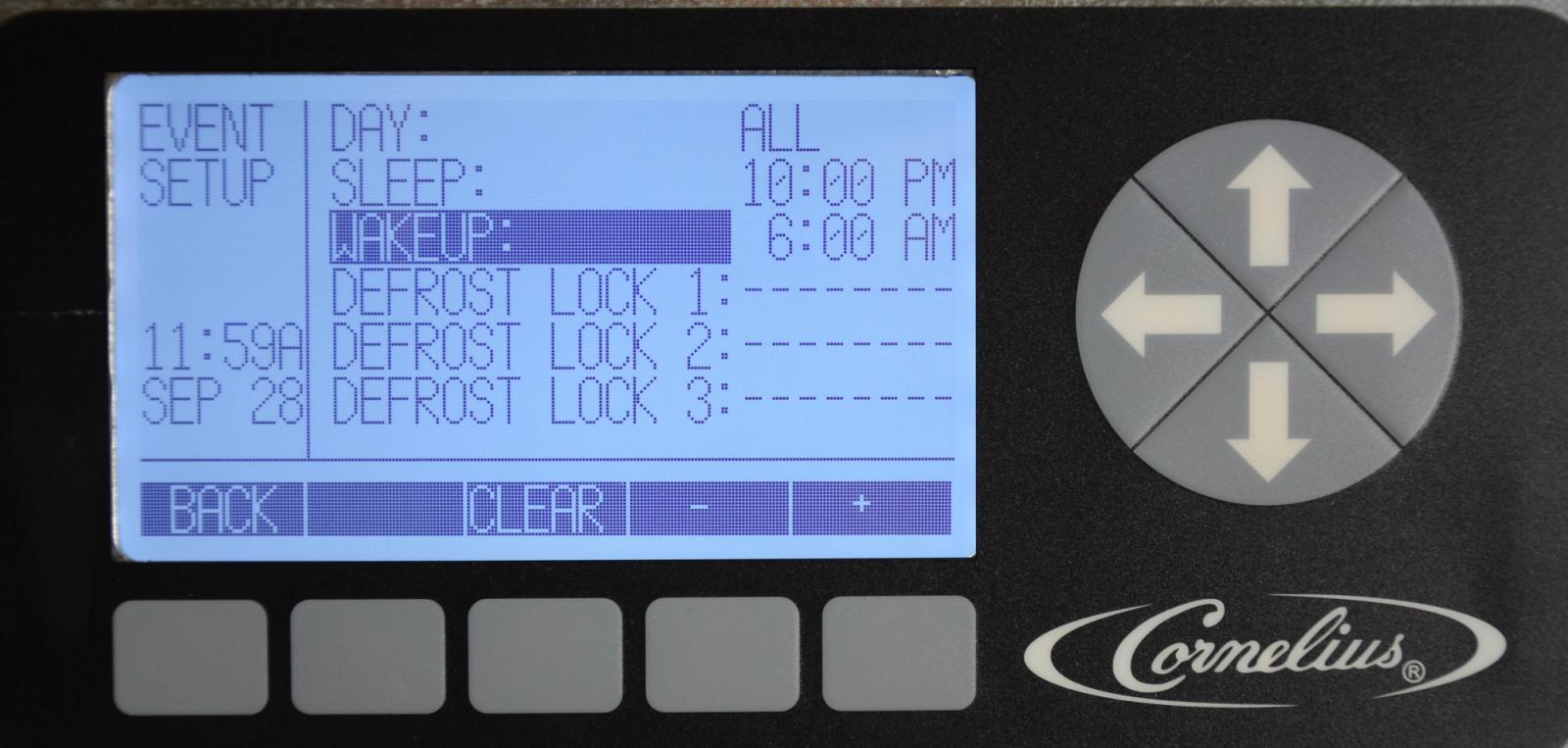
It is recommended to leave the Viper unit run continuously but you can set the Viper to go to sleep and wake up. To do so, highlight EVENTS SET UP in the select MENU and press the GO button. Use the up or down arrows to highlight DAY, then use the + or - buttons to set the desired day or all days. To set sleep use the up or down arrows to highlight SLEEP, then use the left and right arrows to select the hour field and the minute field. To set wake, use the up and down arrows to highlight WAKEUP and repeat steps. If the 12-hour clock option is selected, use the left and right arrows to select the AM/PM field. Then use the + or - buttons to set AM or PM.
Note: Setting a specific day will override any settings set for the week. If setting sleep and wake, it is recommended to set the sleep time 1 hr after closing and to set the wake for 1 hr prior to opening. This allows last minute customers to get a drink and ensure the product is ready for customers in the morning.
-
Set Defrost Lock Out
When looking at the Event set up, the viper has an auto defrost cycle built into its programming. If not, enough product has been dispensed from a particular barrel after a 3 hour period, it will initiate a defrost cycle to ensure the product stays fresh.
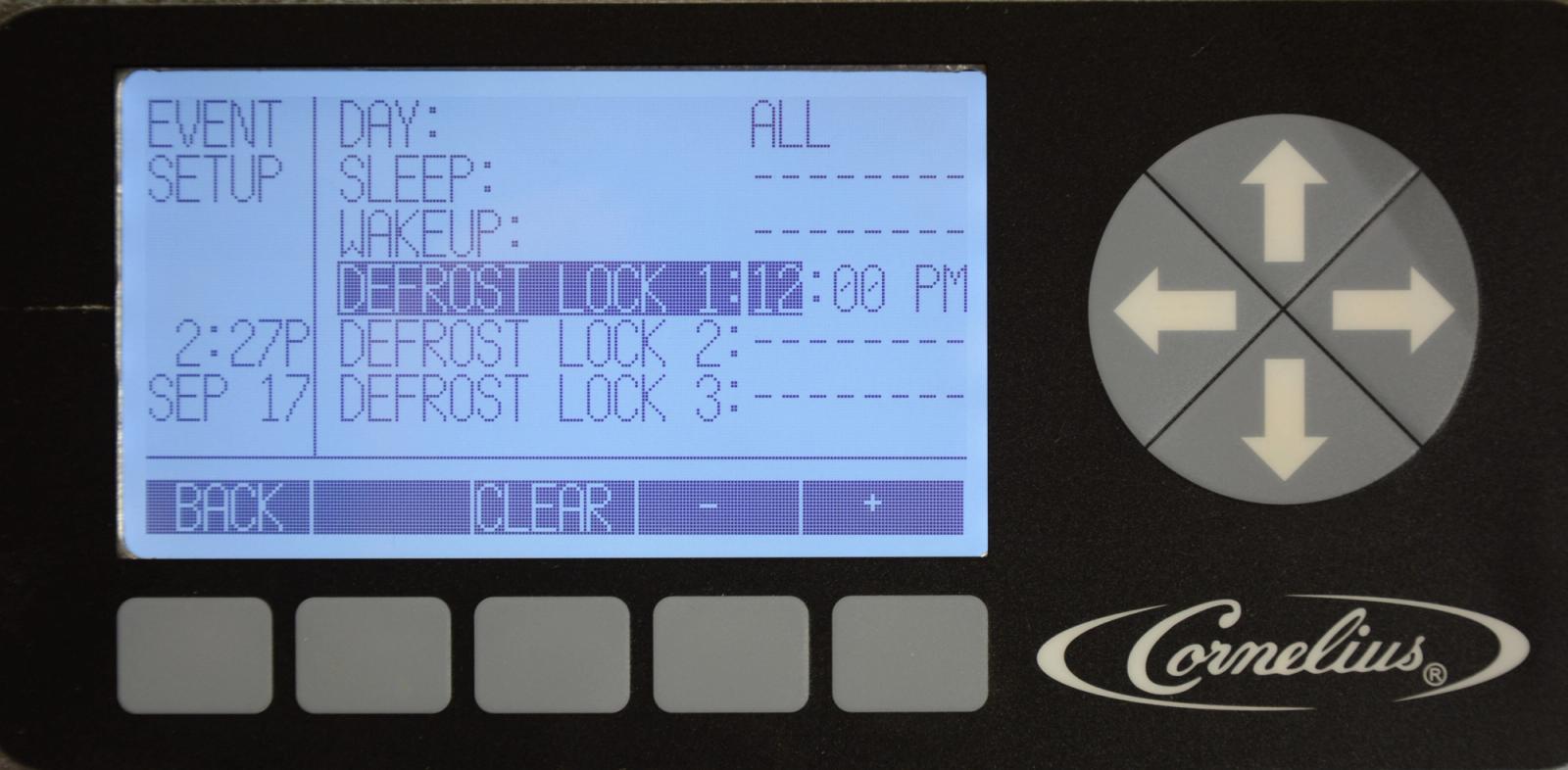
Defrost lockout prevents the Viper from automatically defrosting during set times and is typically enabled if the Viper or a specific barrel is constantly in defrost during peak times. The defrost lockout affects all barrels at the same time and can be programmed to have 3 - three hour defrost lockout time slots. They can be individual or sequential for a maximum of 9 hours per day. Sequential defrost lockouts should be overlapped by 15 minutes to prevent Intelligent Defrost© from engaging.
Caution: Three consecutive defrost lock outs can cause barrel errors
-
Set Defrost Lock Out
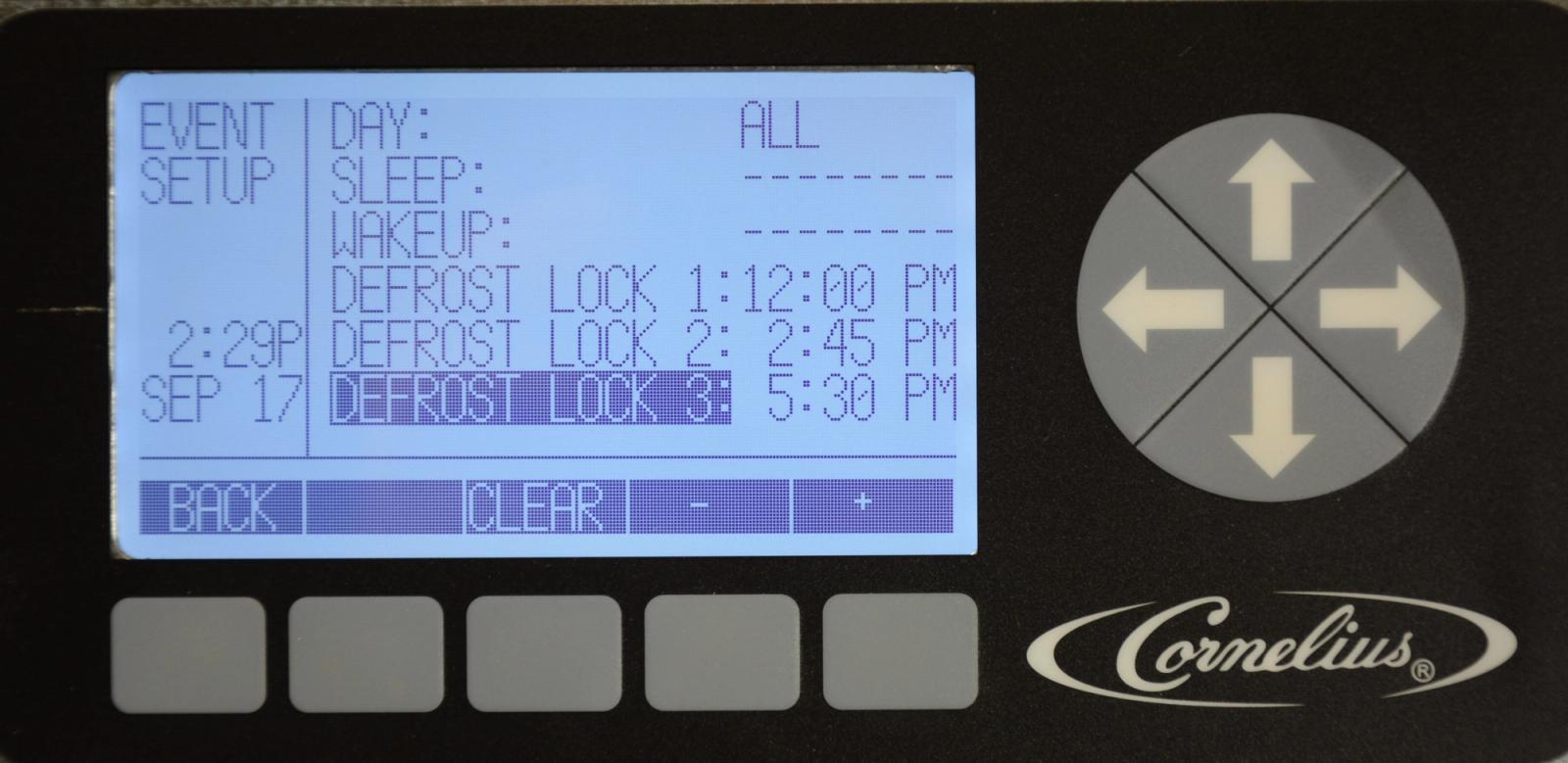
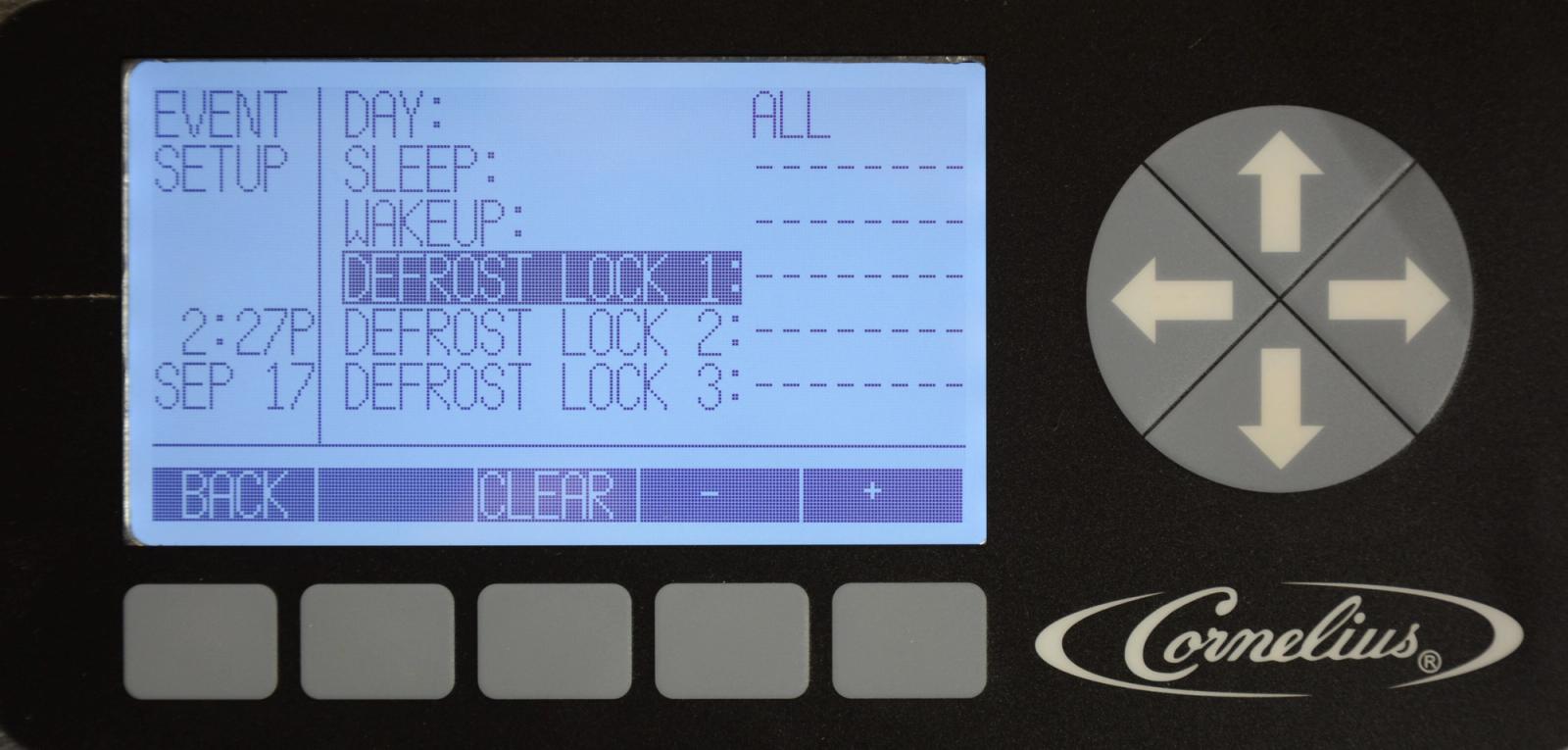
The Viper defrost lockouts can be set for individual days or all days to lockout the automatic defrost cycle. To set the defrost lock out times, highlight EVENTS SETUP in the select menu and press the GO button. To activate the defrost lockouts use the up or down arrows to highlight DAY, then use the + and - buttons to set the desired day or all days. To set specific lockout times, use the up or down arrows to highlight DEFROST LOCK 1, then use the left or right arrows to select the hour field and use the + and - buttons to set the desired hour. Next, use the left and right arrows to select the minute field, then use the + and - buttons to set the desired minute (in 15 min increments). If the 12 hour clock option is selected, use the left and right arrows to select the AM/PM field and the + button to set the AM/PM field.
Caution: Three consecutive defrost lock outs can cause barrel errors
-
Set Defrost Lock Out
Note: Defrost lockouts are not set during manufacturing. Do not set the defrost lockout unless the times are mandated by the account based off peak times.
Example of 15 min overlapping if setting consecutive lockouts. 12:00pm-2:45pm, 2:45pm- 5:30pm, and 5:30pm-8:15pm.
Caution: Three consecutive defrost lock outs can cause barrel errors