Clock Setup
Viper — Installation — Control Panel System Setup
-
Clock Setup
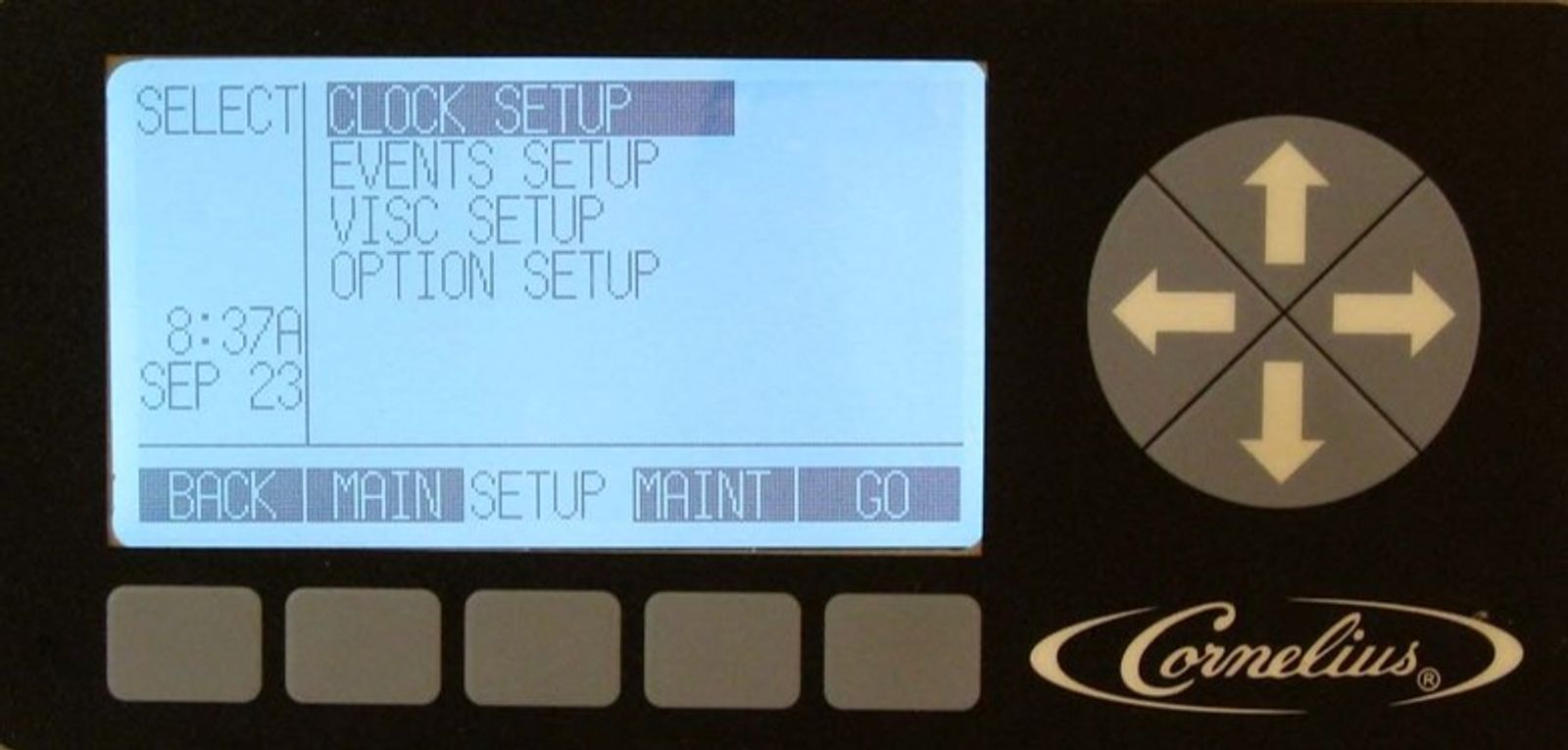
Using the up or down arrows highlight the CLOCK SETUP field from the SETUP menu and press GO. This displays the Clock Setup option for time, date and daylight savings.
-
Set Current Time
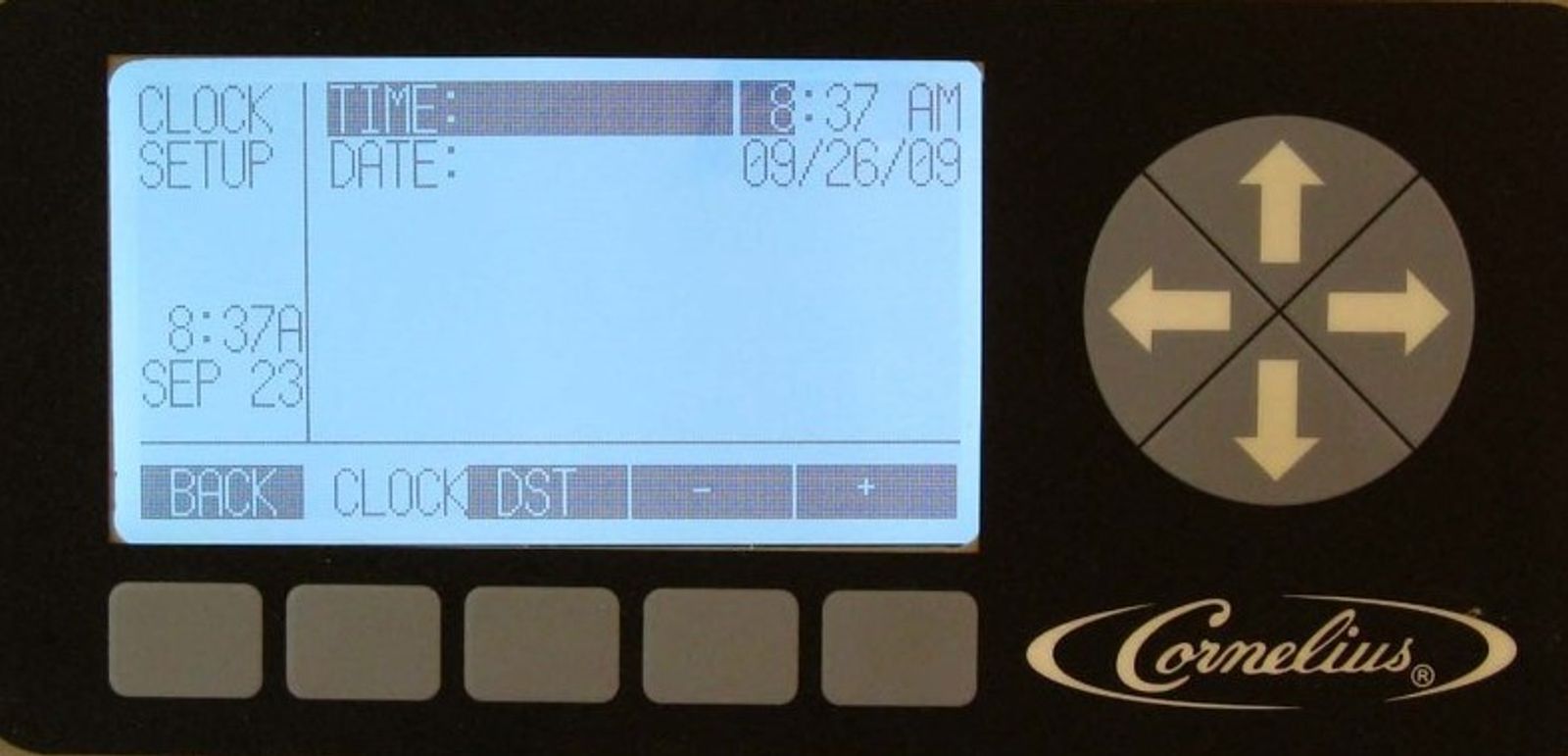
To set the time, use the up and down arrows on the control panel to highlight the TIME option on the screen. Use the left and right arrows to select the hour field, then use the + or - buttons to set the hour. Use the left and right arrows to select the minute field, then use the + or - buttons to set the minutes. If the 12 hour clock format is selected, use the left and right arrows to select the AM/PM field and use the + button to set the AM/PM setting.
-
Set Current Date
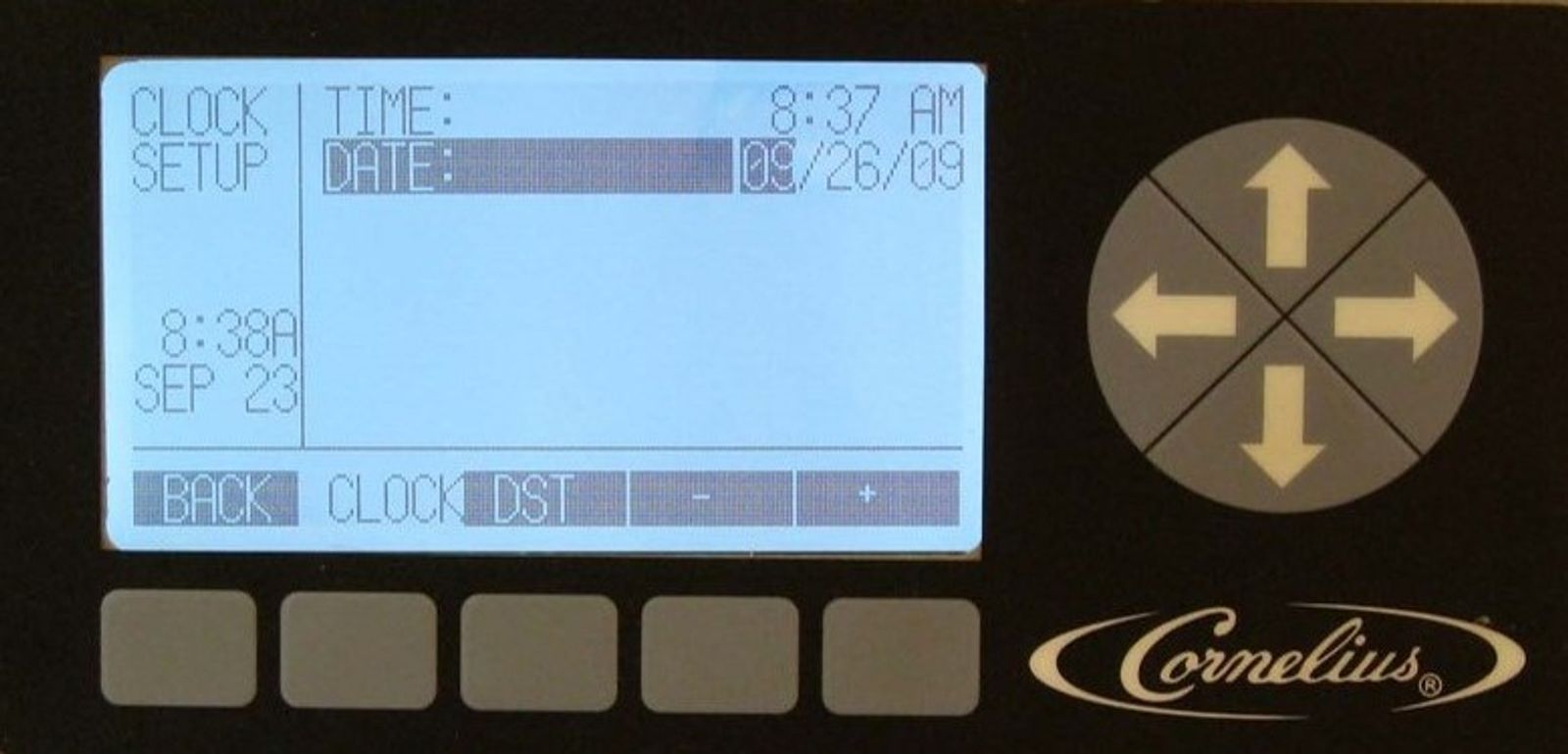
To set the date, use the up and down arrows on the control panel to highlight the DATE option on the screen.
Use the left and right arrows to select the month field, then use the + or - buttons to select the month. Use the left and right arrows to select the day field, then use the + or - buttons to set the day. Use the left and right arrows to select the year field, then use the + or – buttons to set the correct year.
-
Selecting Daylight Savings
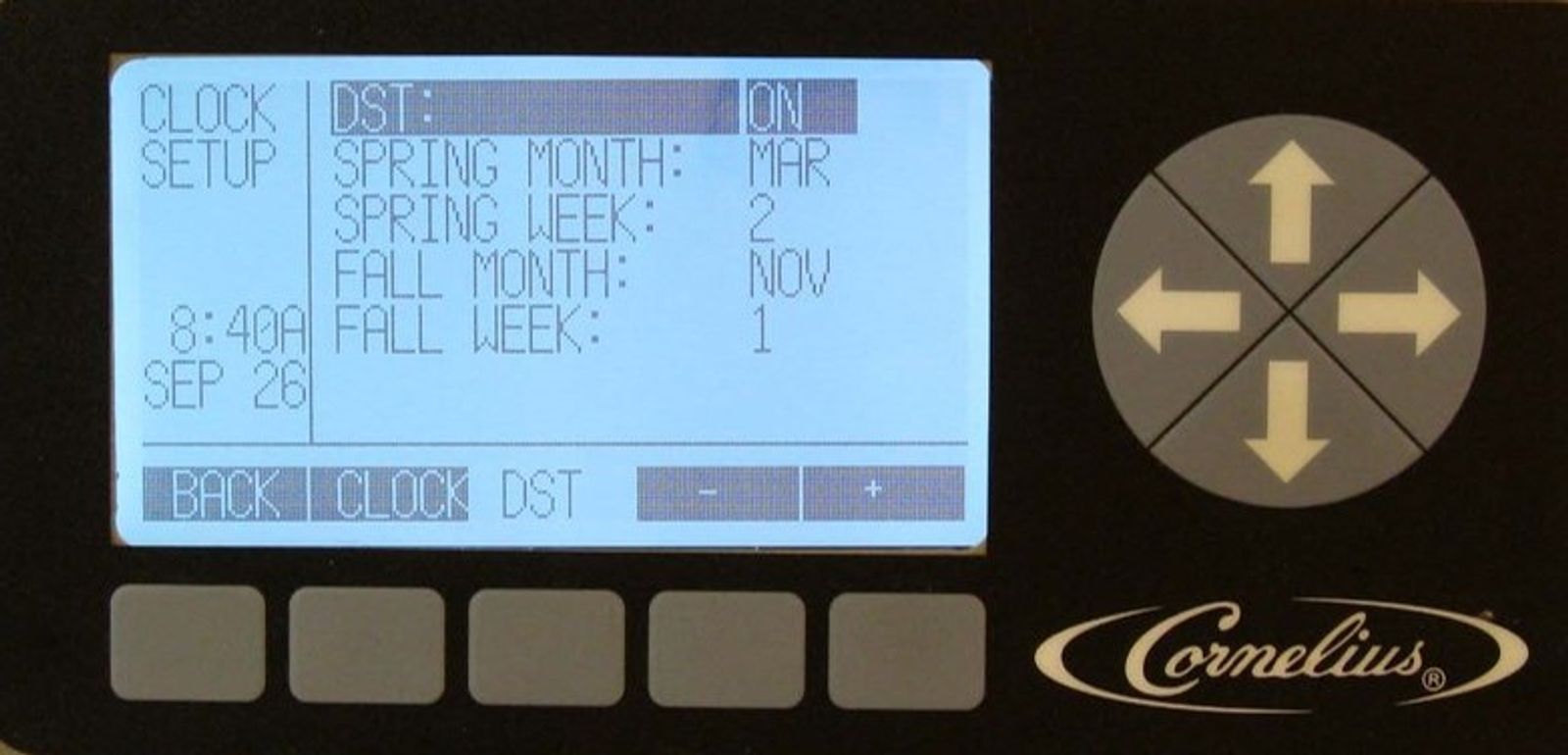
You can enable and set Daylight Savings once the time and date are set, this will automatically adjust the time when DST occurs. Press the DST button while in the CLOCK SETUP menu to display the Daylight Savings Time menu. Highlight the DST option and use the + button to turn on daylight savings time. Use the up or down arrows to select SPRING MONTH, then use the + or – buttons to set the correct month. Use the up or down arrows to select SPRING WEEK, then use the + or - buttons to set the correct week. The choices are 1, 2, 3 or L. Repeat the same process for FALL WEEK.