
Backup and Restore
IDC Pro Pocket Guide — Operation — Technician's Level Menu: Service Level 3
-
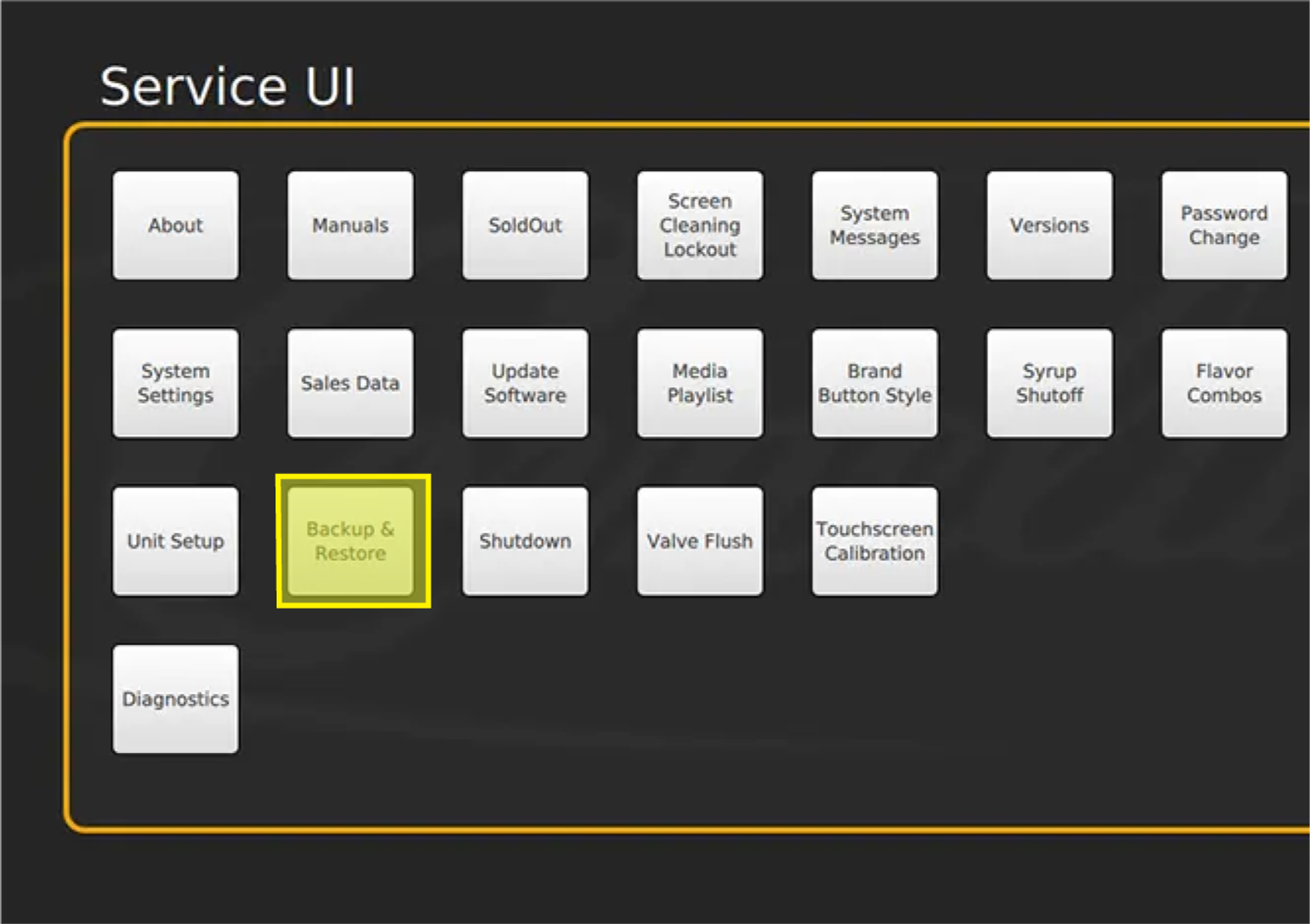
Access Backup and Restore
The Backup and Restore screen allows you to save a specific IDC Pro’s current configuration file to the USB drive. The backup and restore also allows you to restore specific parameters back to factory settings.
Do not restore any parameters without being instructed by a Cornelius representative.
-
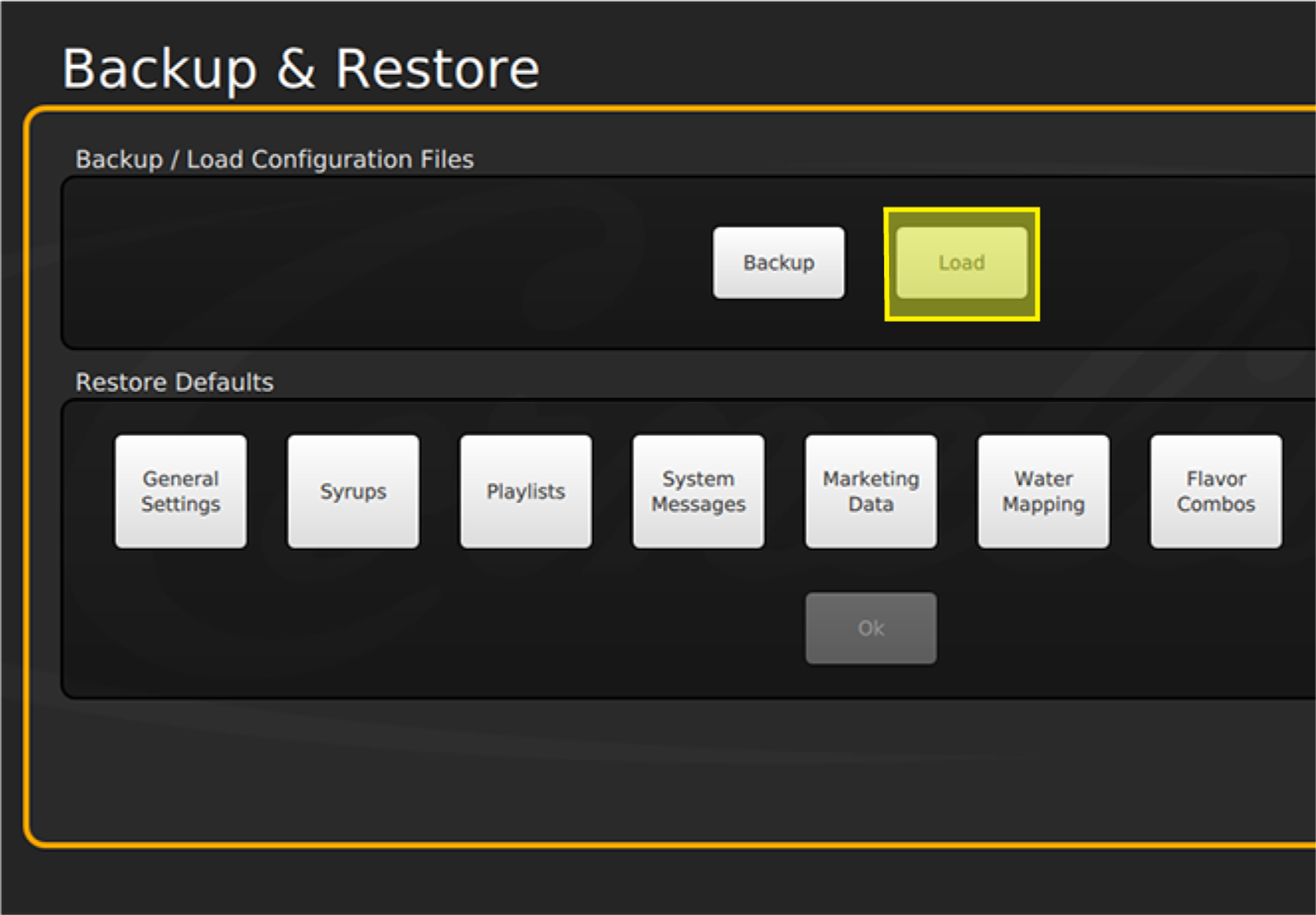
Load Configuration
To load a configuration, first insert a USB flash drive containing a configuration to be uploaded. Do so by removing the black USB cable from the back of the screen and inserting the USB drive into the same USB port.
-
Select Configuration File
Once the USB drive is inserted, select Load under Backup/Load Configuration Files.
-
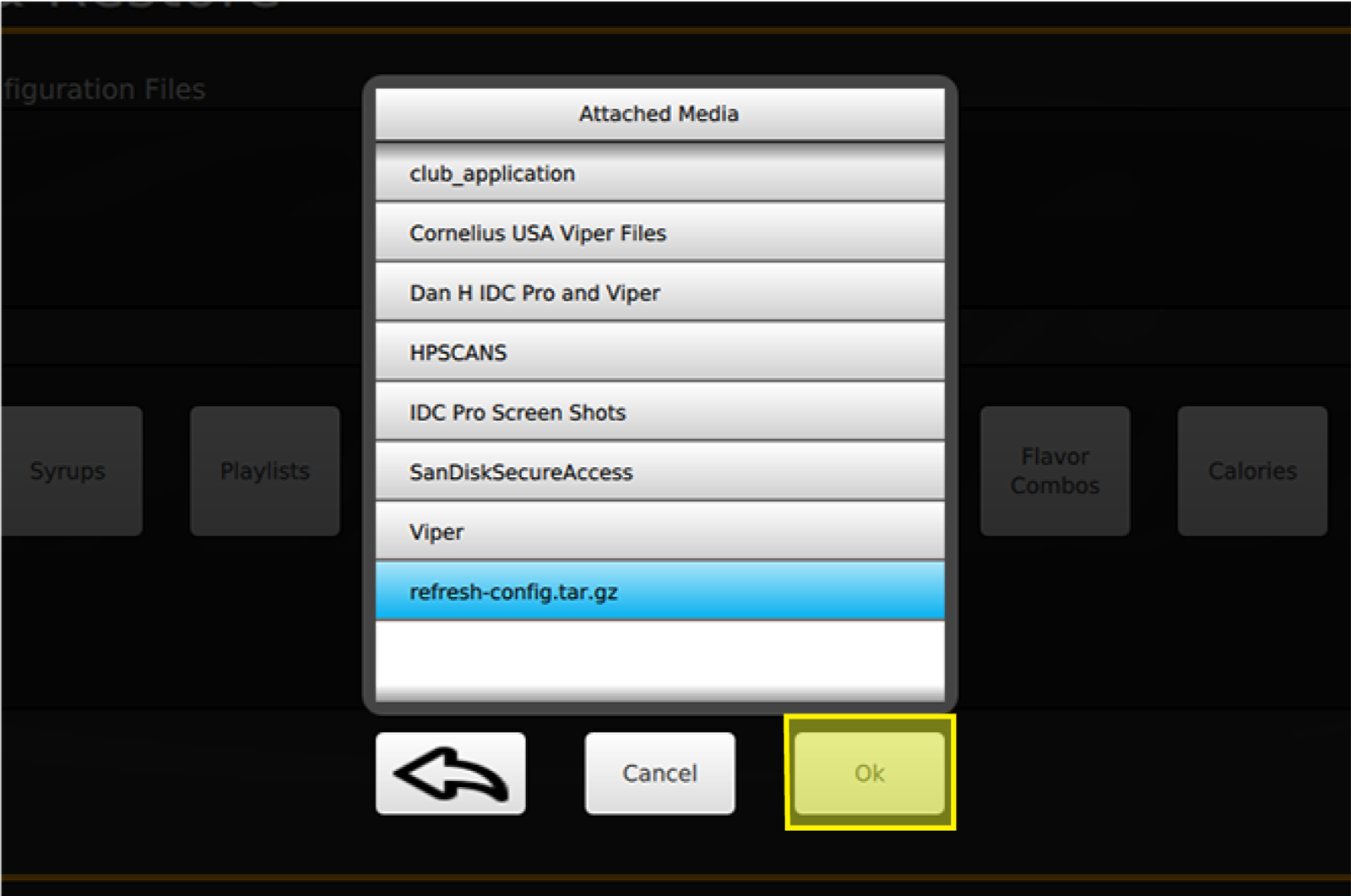
Confirm Configuration File
You will see the title of your USB drive in the Attached Media window that will appear. Select the title of your USB drive, then select the configuration file. Select OK while the configuration is highlighted in blue. After selecting OK, the IDC Pro must be re-started to complete loading the configuration.
-
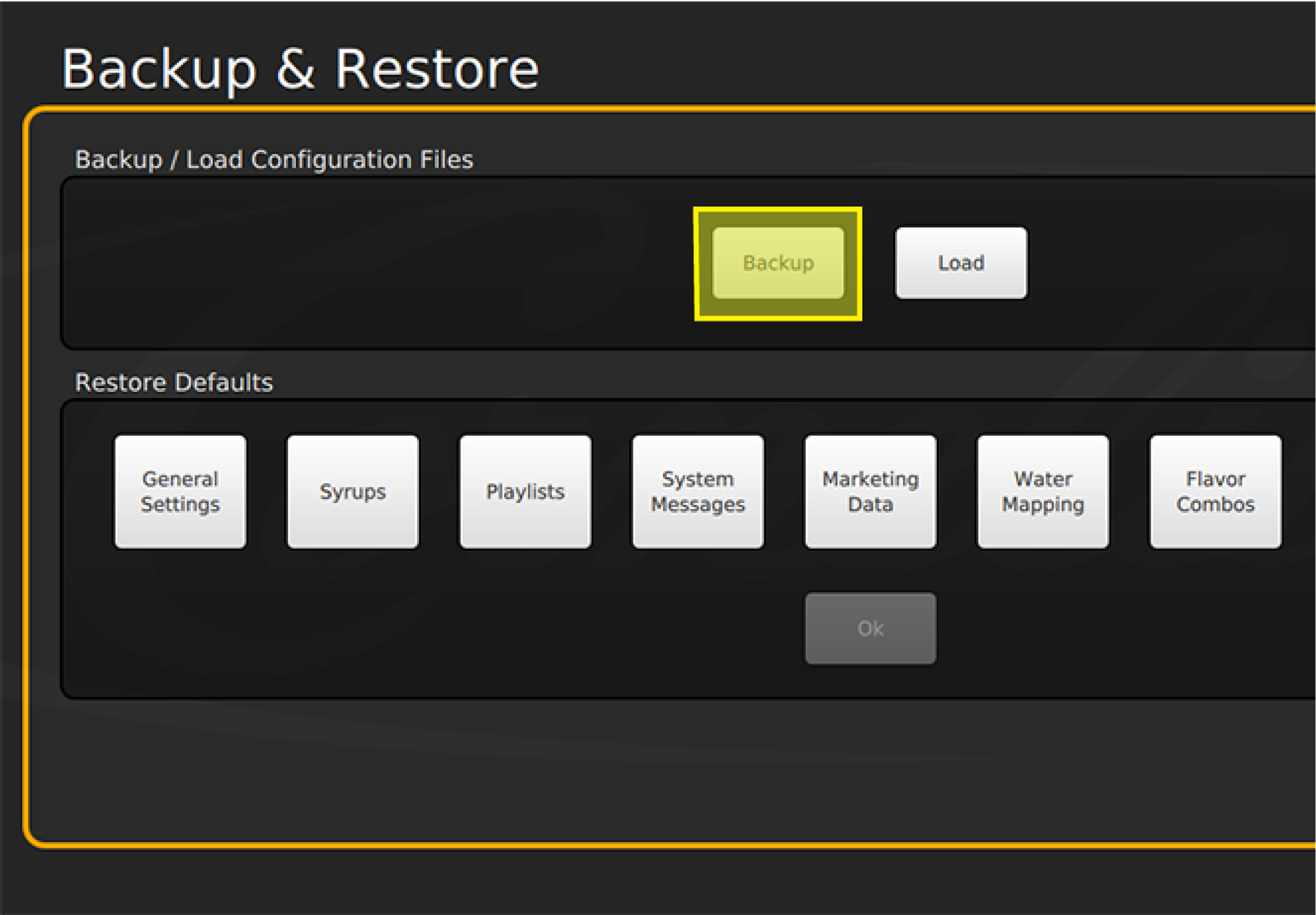
Backup Configuration File
To back up a configuration, first insert a USB drive to back up the current configuration. Do so by removing the black USB cable from the back of the screen, and insert the USB drive into the same port. Once the USB is inserted, select Backup under Backup/Load Configuration Files.
