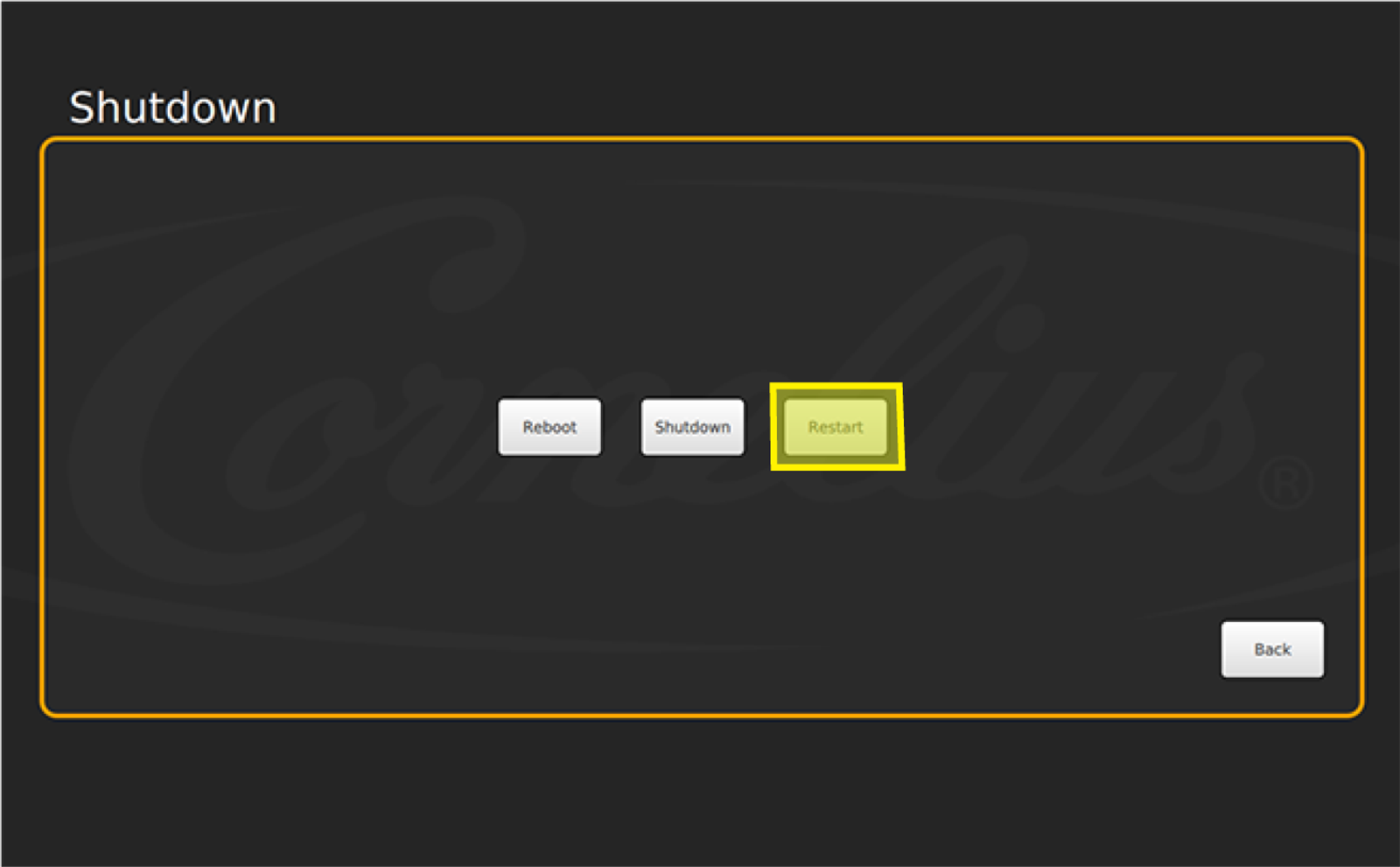
Shutdown, Reboot, and Restart
IDC Pro Pocket Guide — Operation — Operator's Level Menu: Service Level 1
-
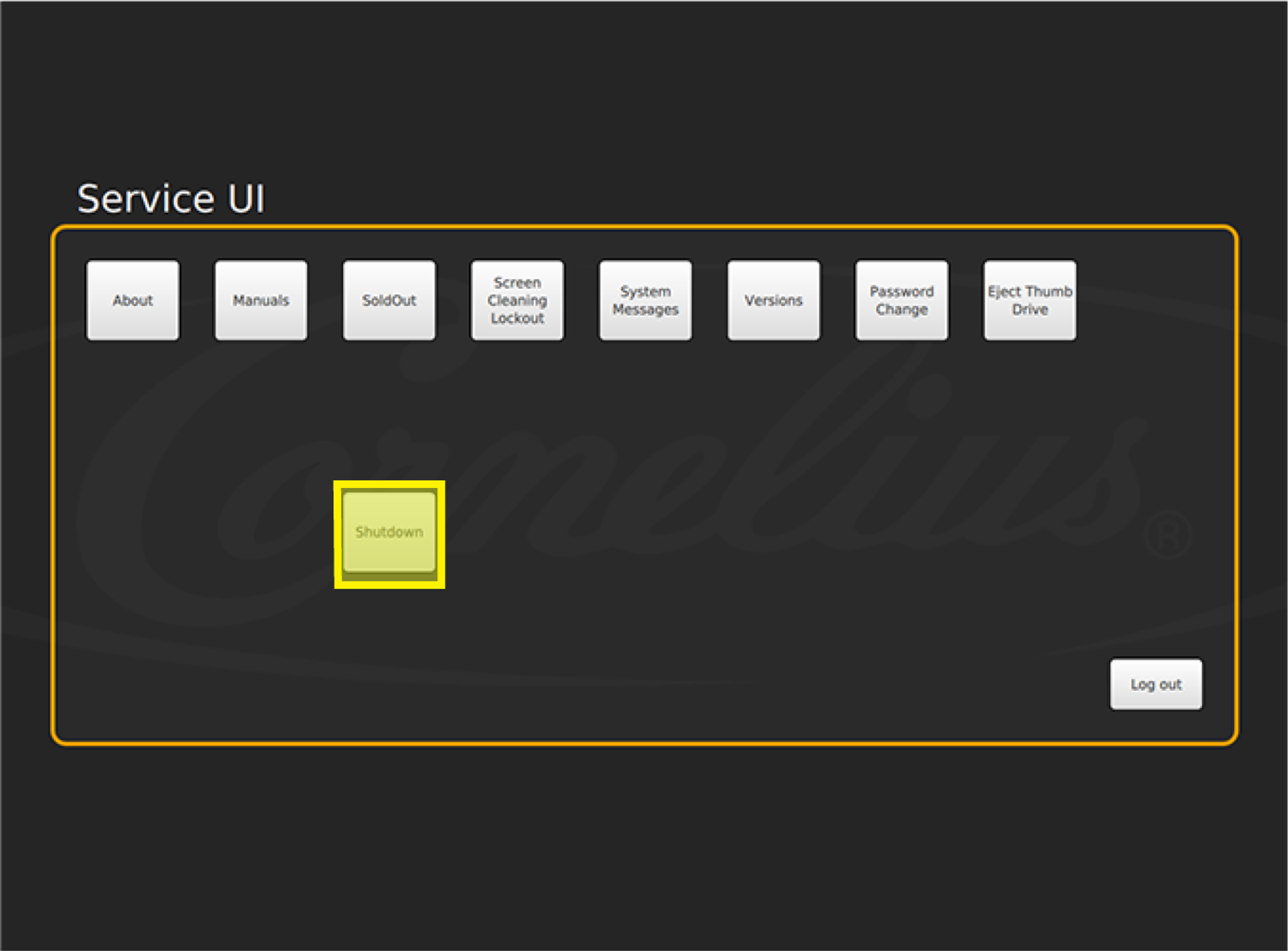
Select Shutdown
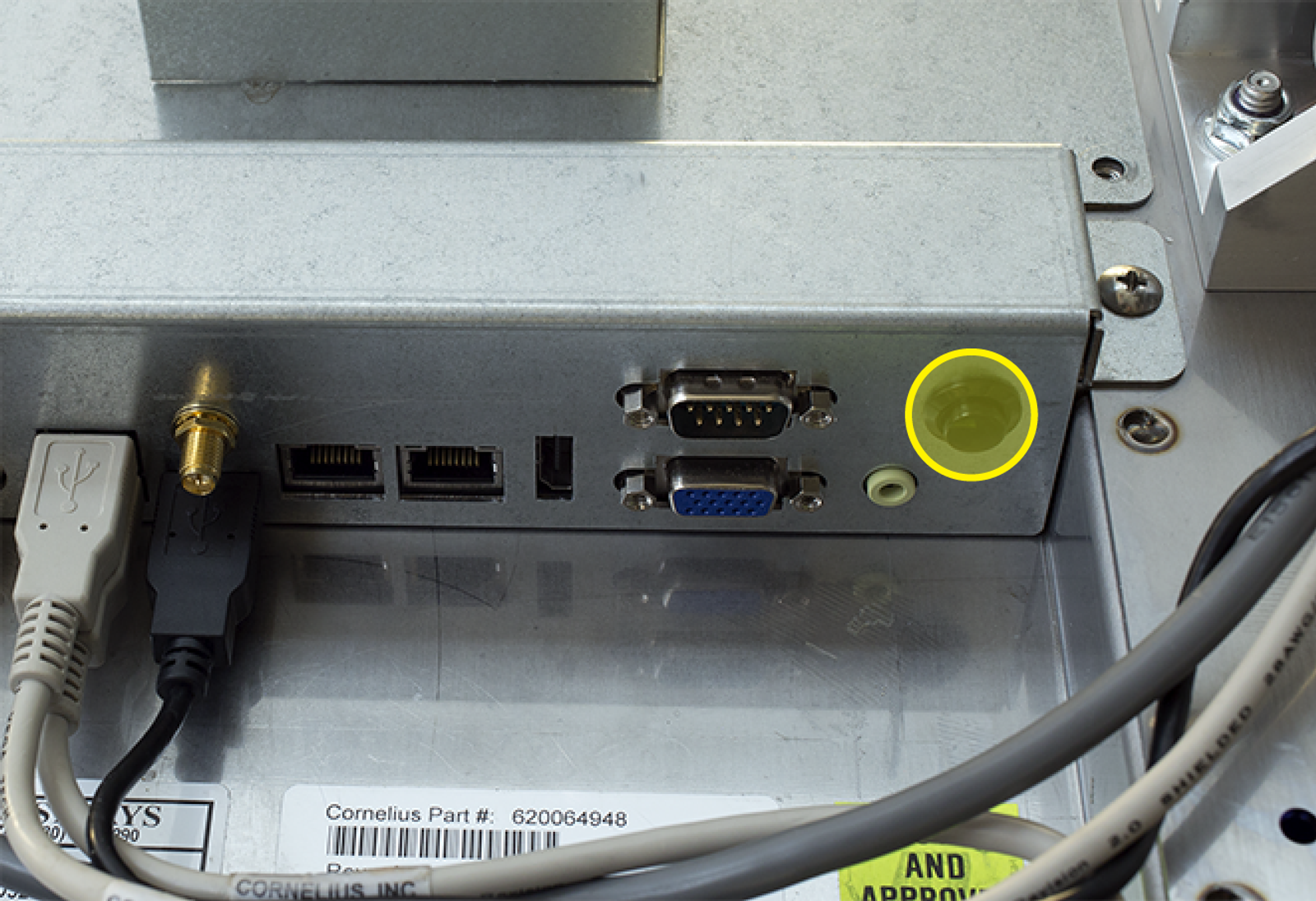
If the screen is non responsive and you are unable to select Reboot, Restart or Shutdown, you can press and hold the Reset button for 5-7 seconds and it will shut the screen down.
Once the screen is shutdown there are two methods to restore power:
1) Unplug and plug the IDC Pro in.
2) If the IDC Pro is plugged in, press the reset button one time and it will restore power.
-
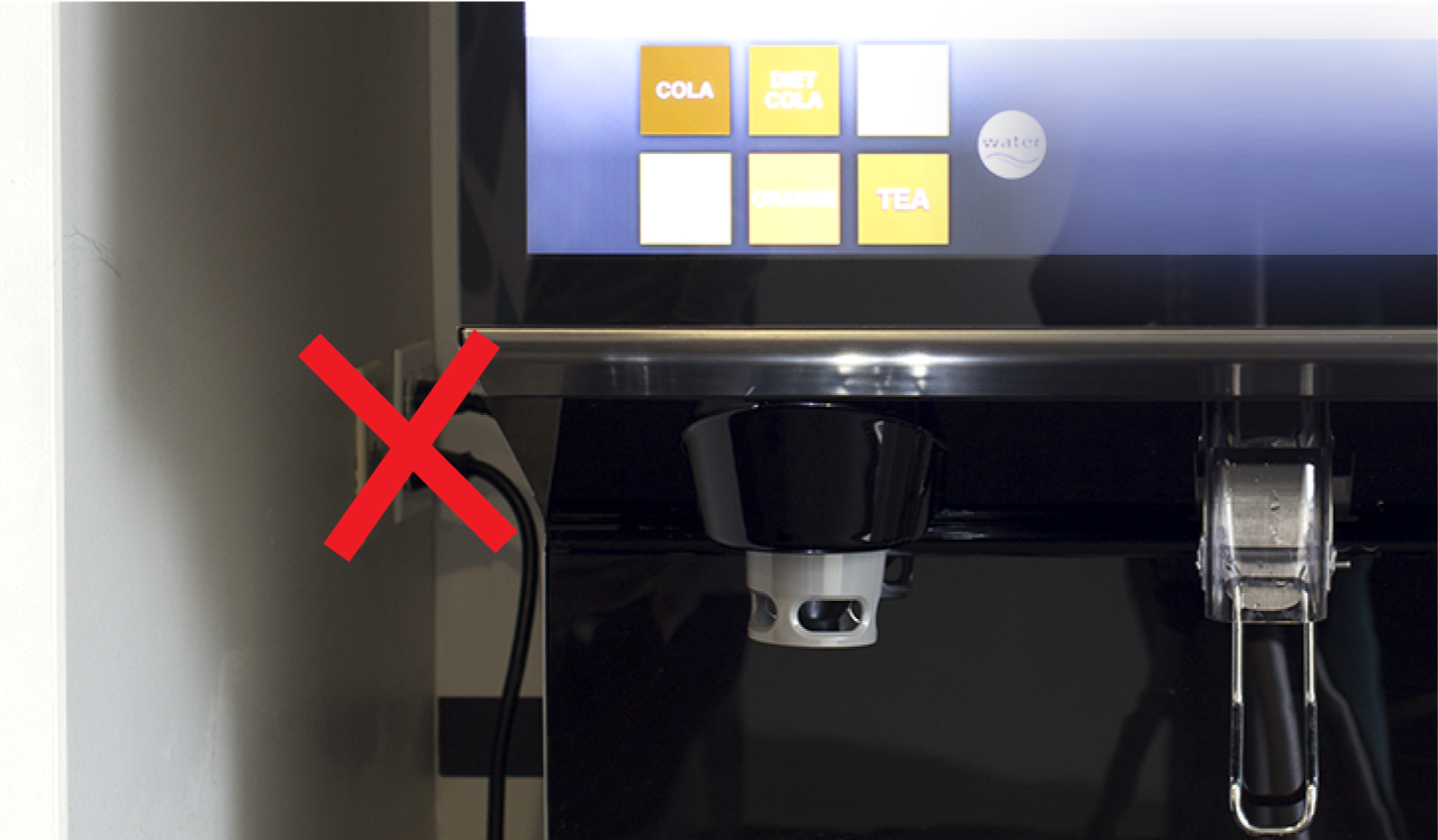
Avoid Unplugging
Caution! Avoid unplugging the IDC Pro without safely shutting down the screen! Be sure to shut down the unit when servicing the IDC Pro or resetting the carbonator pump.
-
Screen Shutdown Method #1
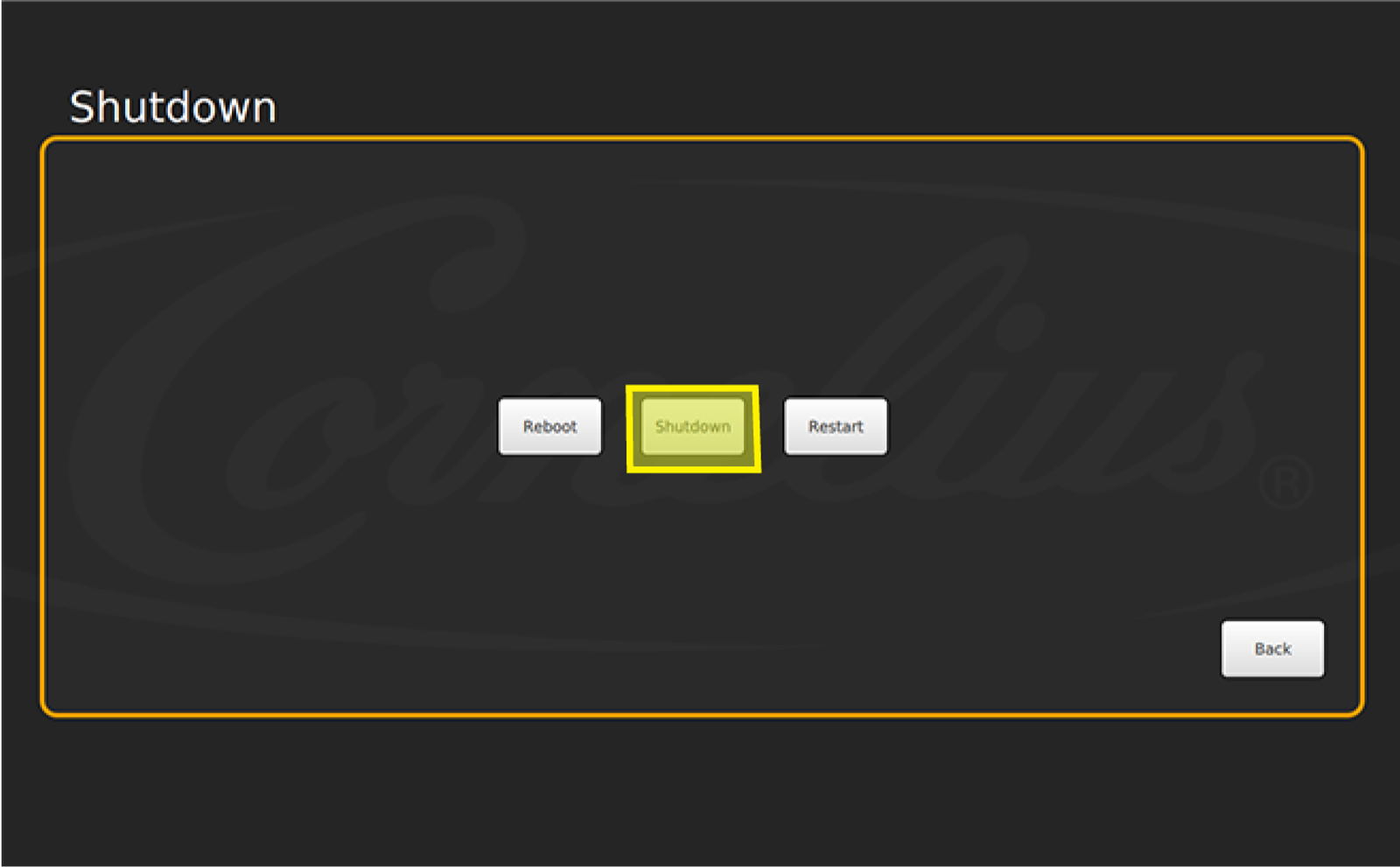
Tap the 4 corners (in a C) to select Shutdown from the Service Menu. A smaller window will appear in the screen to give you the ability to safely shut the screen down.
-
Screen Shutdown Method #2
Press the Reset button on the back of the screen. Press it once and a small window will appear, giving you the option to safely shut it down.
-
Reboot
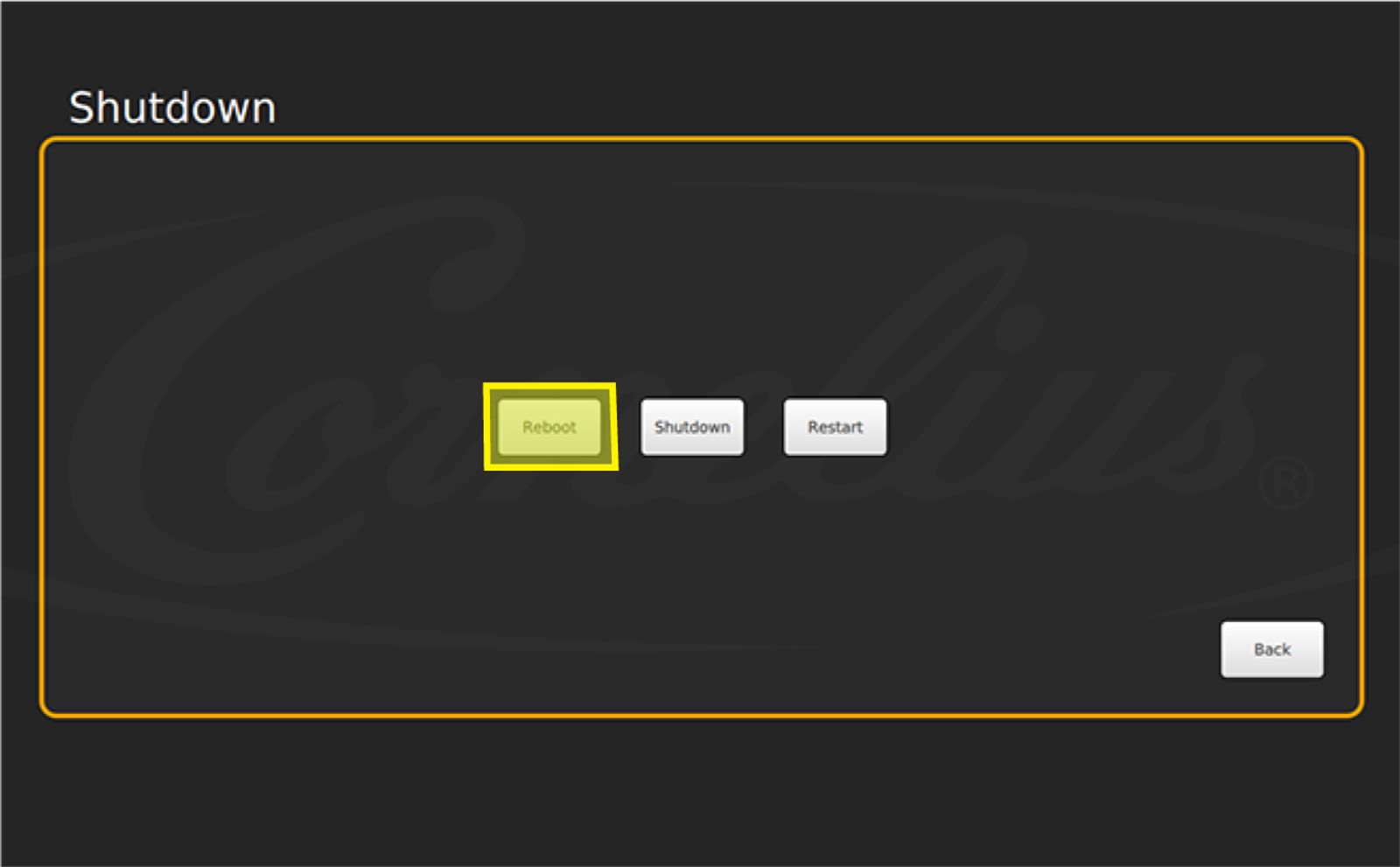
Within the Shutdown menu, select Reboot to reboot the entire computer and application. Reboot when the screen is intermittent, freezing, or if you are getting a slow response on the video or touch screen.
Note: If you are unsure of which icon to select to reset an error, select Reboot.
-
Restart
Within the Shutdown Menu, select Restart to restart the application (not the IDC Pro’s computer).
Select Restart when you have cleared out the sales data and need to restore any defaults.