
Password Change
IDC Pro Pocket Guide — Operation — Operator's Level Menu: Service Level 1
-
Select Password Change
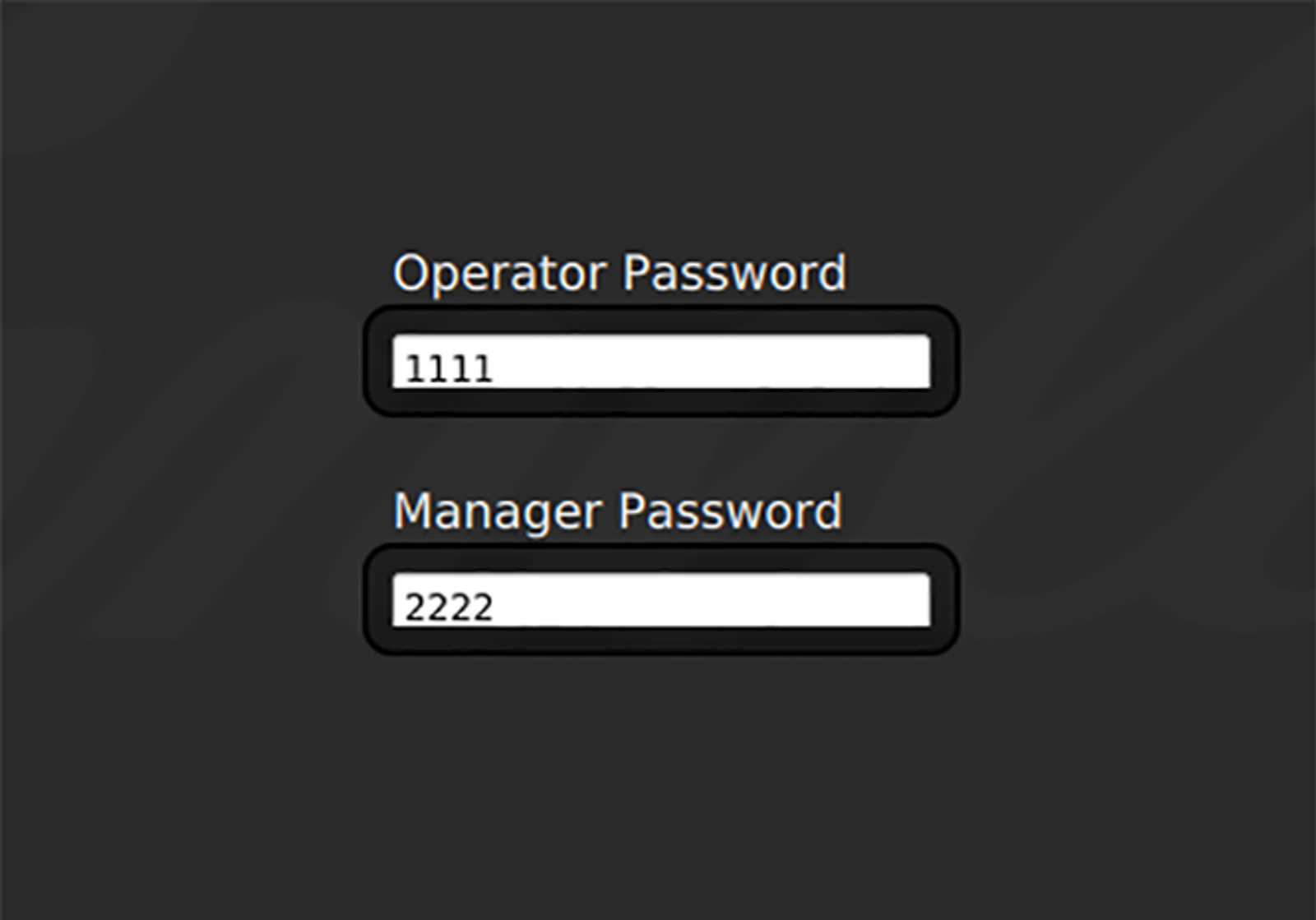
To change the password, select Password Change on the Service screen, followed by selecting the white area under Operator Password to edit the password for that service level.
Note: Do not change the password, since others will not know the new password. If you do change the password, notify anyone who may be affected to ensure they can access the menu.
-
Password Levels
The Password Change feature allows a password change for the Service Level screen you are currently accessing.
For example, you can only change the password for service level 1 if you are in service level 1. If you are in service level 2, you can change the password for service levels 1 and 2.

-
Forgotten Password
If you forget your password and need to access the Service screen, you can purchase a security key from a Cornelius sister company which allows you access to the Service screen.

-
Order Security Key
Order a security key at: www.3wire.com
Product number: #620065686
Note: If you cannot gain access to the service menu and do not have the security dongle call Cornelius Tech Support at 1-800-238-3600.
