
Software Update
IDC Pro Pocket Guide — Operation — Manager's Level Menu: Service Level 2
-
Download Latest Software
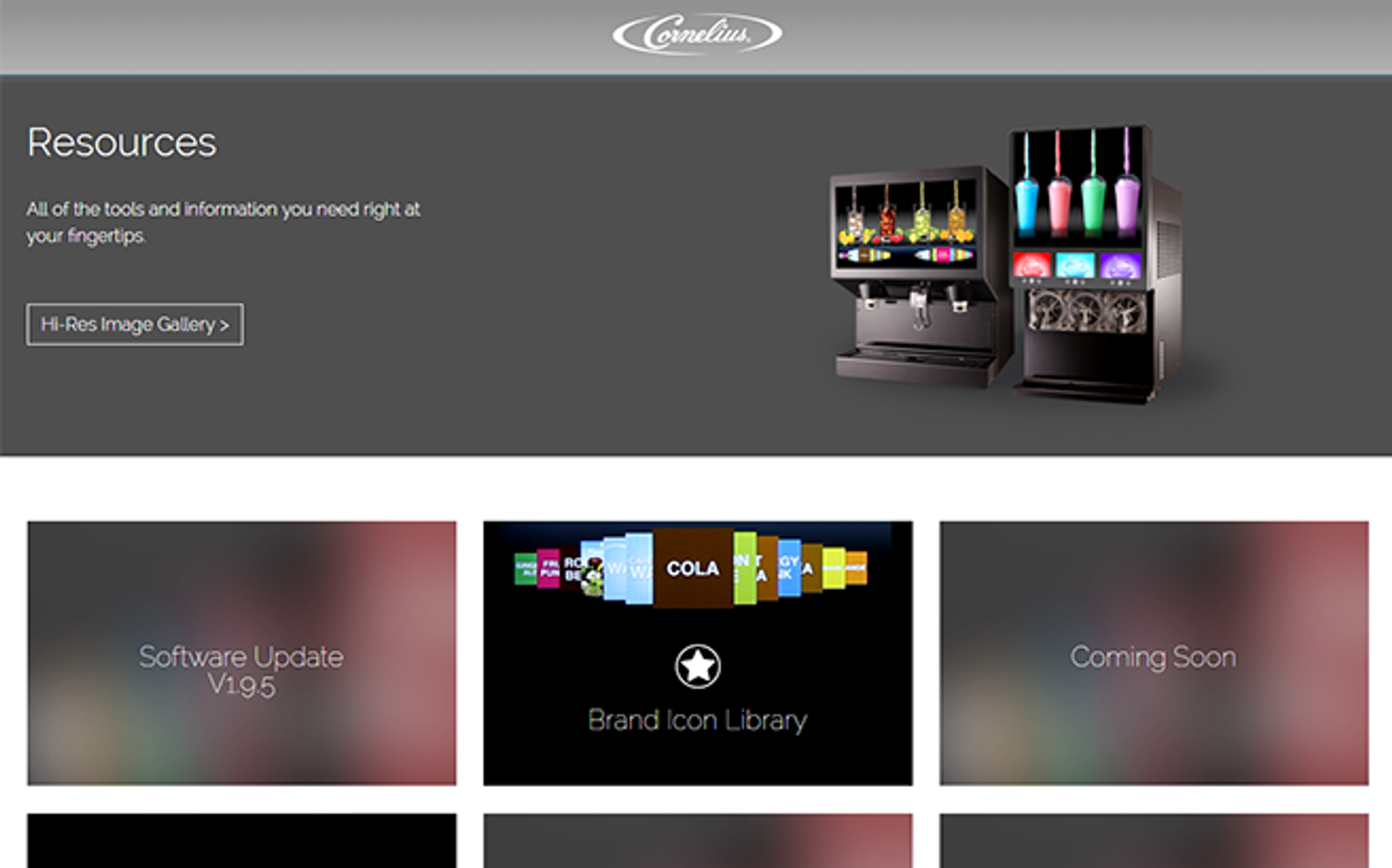
The Update Software function allows you to upload new versions of the IDC Pro software. The first step is to download the latest software from the resources page of the IDC Pro website to a USB flash drive.
Find the software update at: Resources - Cornelius USA
-
Insert USB
Insert a USB into a laptop or computer and download the software update from the website. Then unplug the black USB connection on the back of the digital merchandiser, and plug in the USB flash drive containing the software update file.
-
Select Update Software
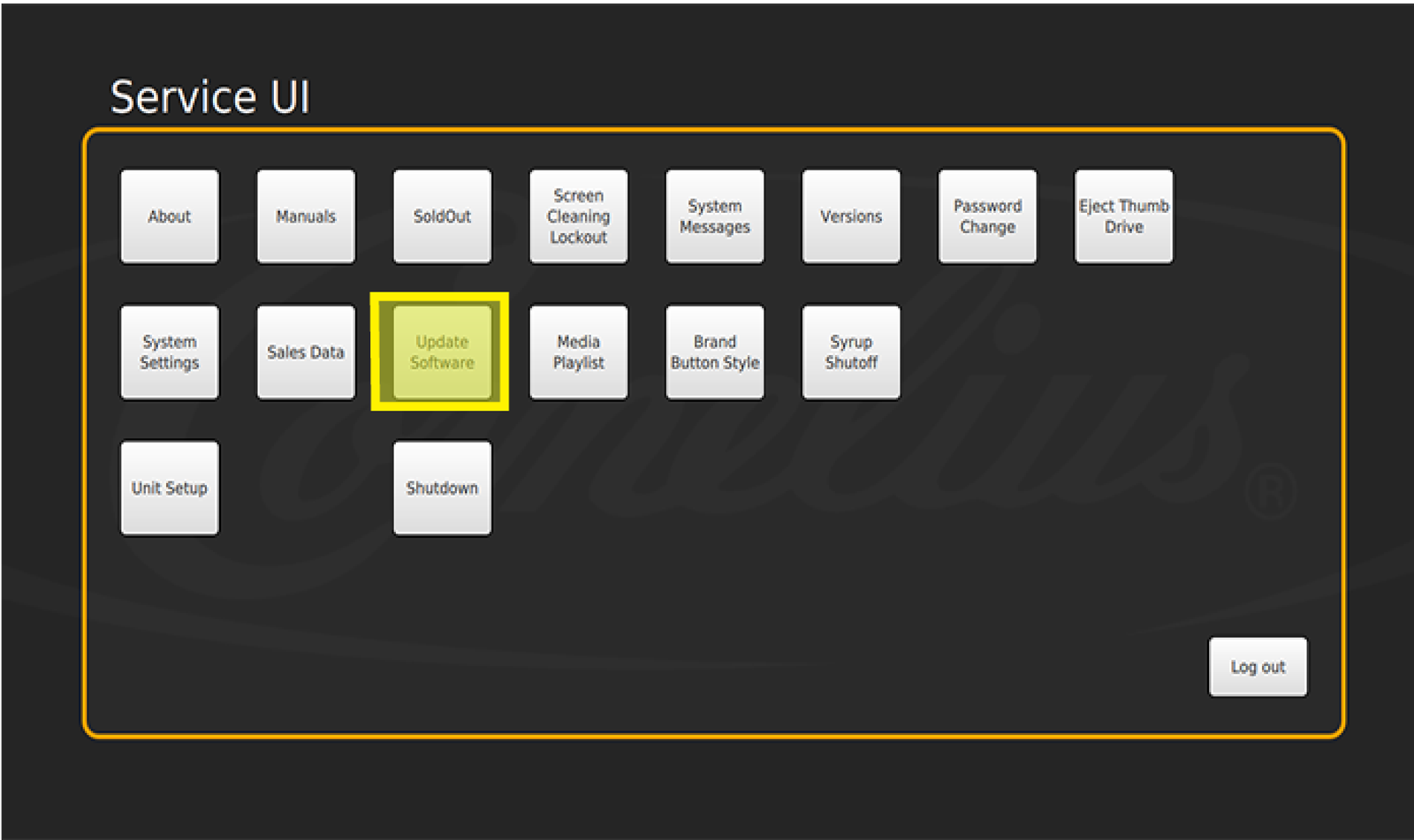
Access the Service menu on the IDC Pro, then select Update Software.
Once you select “Update Software” select “Launch Software Updater”
-
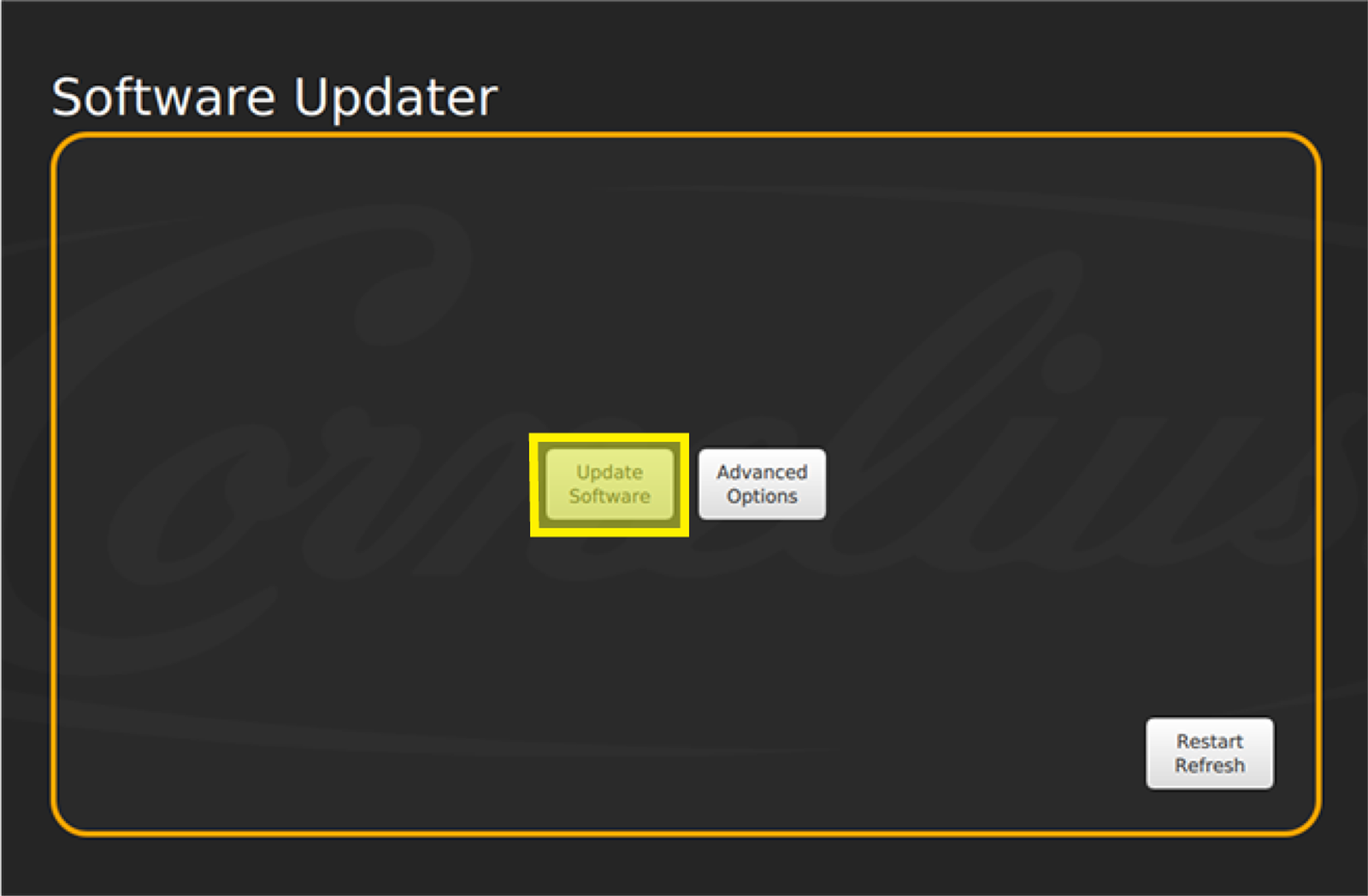
Software Updater
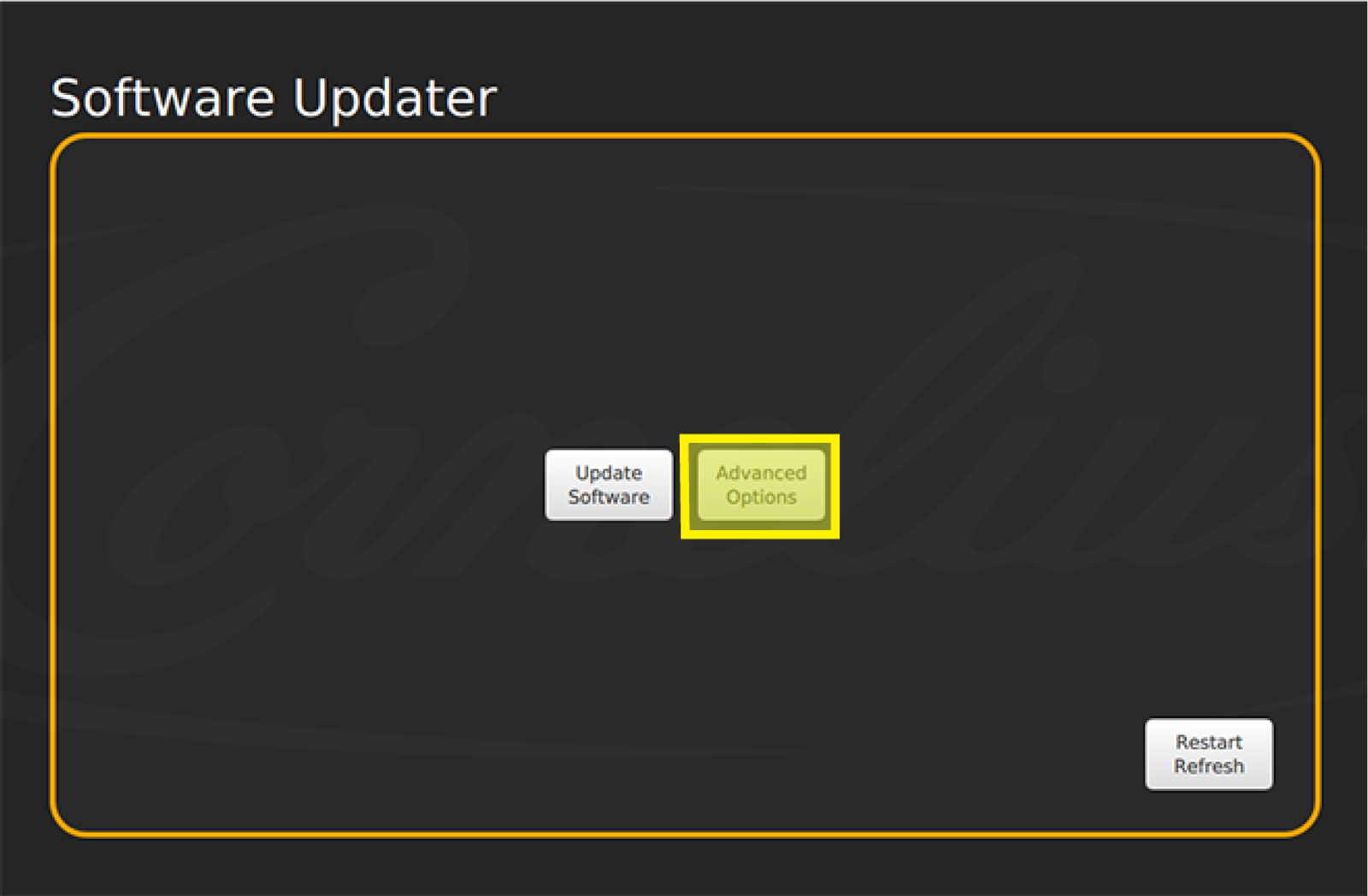
In the Software Updater screen, select Update Software.
-
Install Software
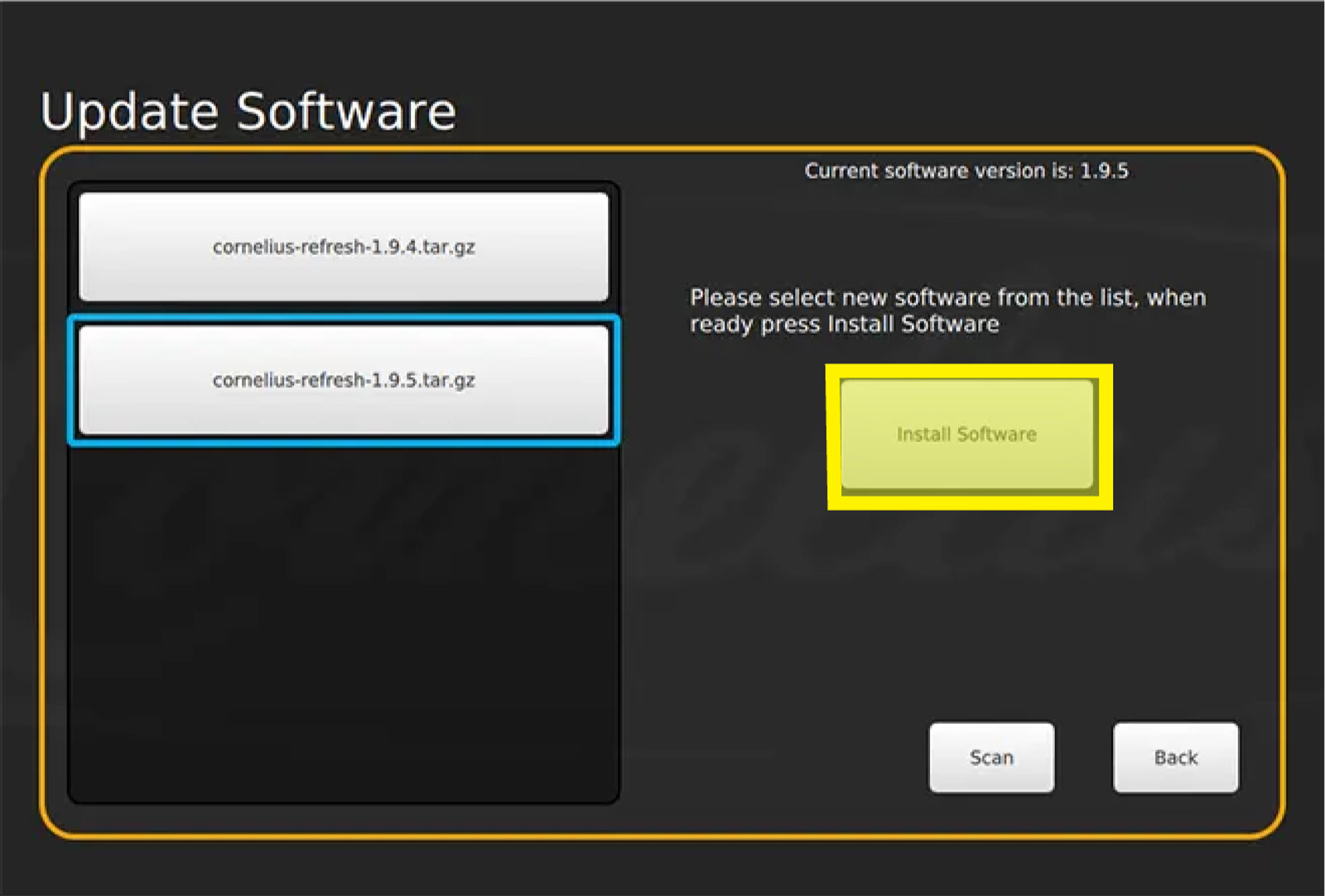
The IDC Pro will recognize the software file from your inserted USB flash drive. Ensure the software file on the left of the screen is selected and highlighted in blue.
Select Install Software to start the installation. The IDC Pro will restart to the home page after a successful software update.
-
Advanced Options
On software 1.6.0 or greater you can update the MFV board firmware. The IDC Pro comes with MFV Firmware 1.5, and you can update to firmware version 1.6. The updated firmware is embedded in the software, but does not update the firmware automatically.
To update the MFV board firmware, launch the software updater, and select Advanced Options. Use the +/- buttons to select 1.6 firmware.
-
MFV Board LEDs
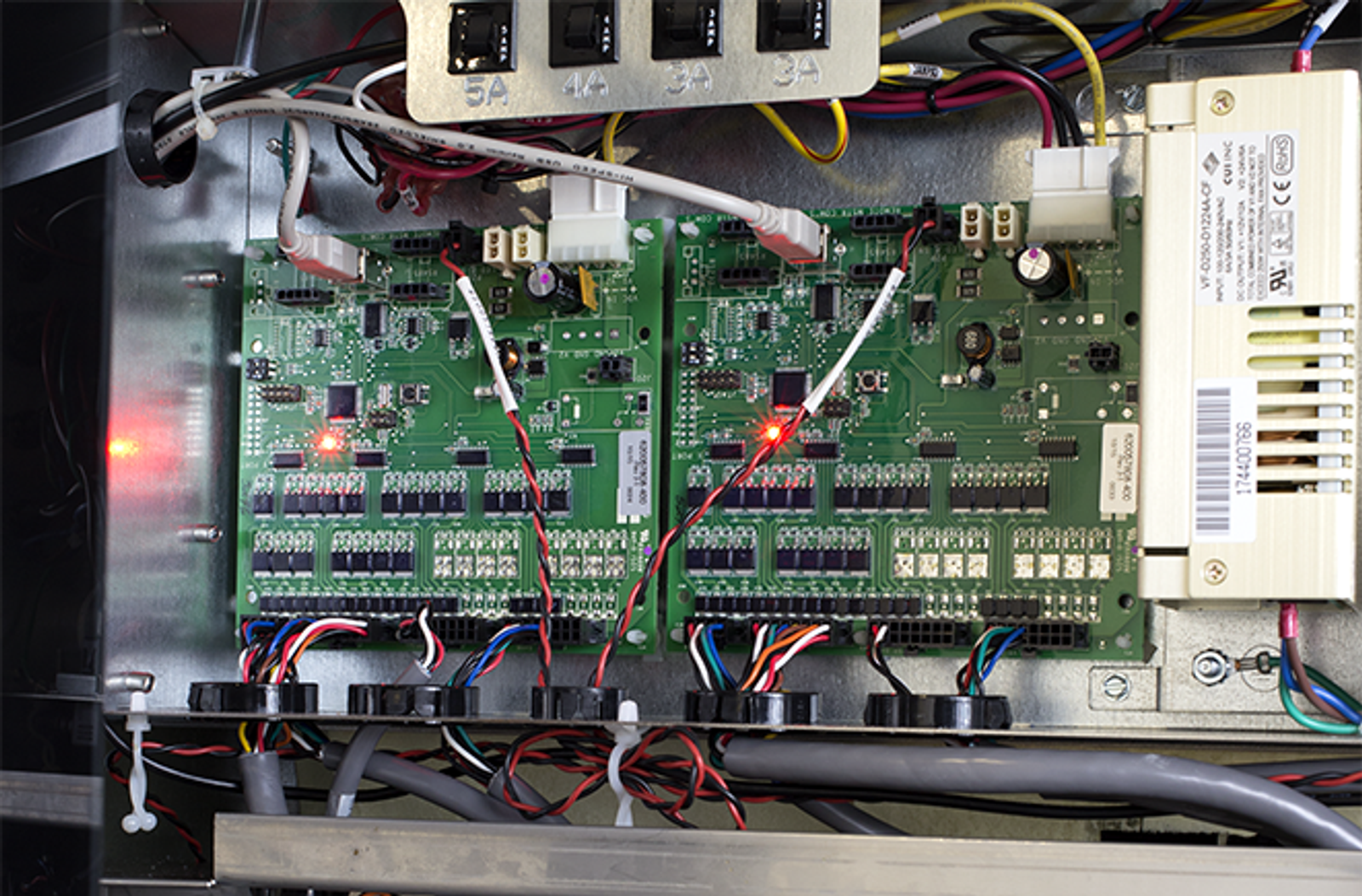
When you select Update Software, the left MFV board will update first. You know the update is occurring when the LED CUP targeting lights turn off. Once complete, the LEDs will turn back on and start the update on the right MFV board following the same process. It takes around 4 minutes per board.
Note: If you update the firmware to 1.6 enter the valve purge option and ensure you select “restore to defaults”. See Valve Purge.
