Sleep Mode
IDC Pro Pocket Guide — Operation — Manager's Level Menu: Service Level 2
-
Select System Sleep Mode
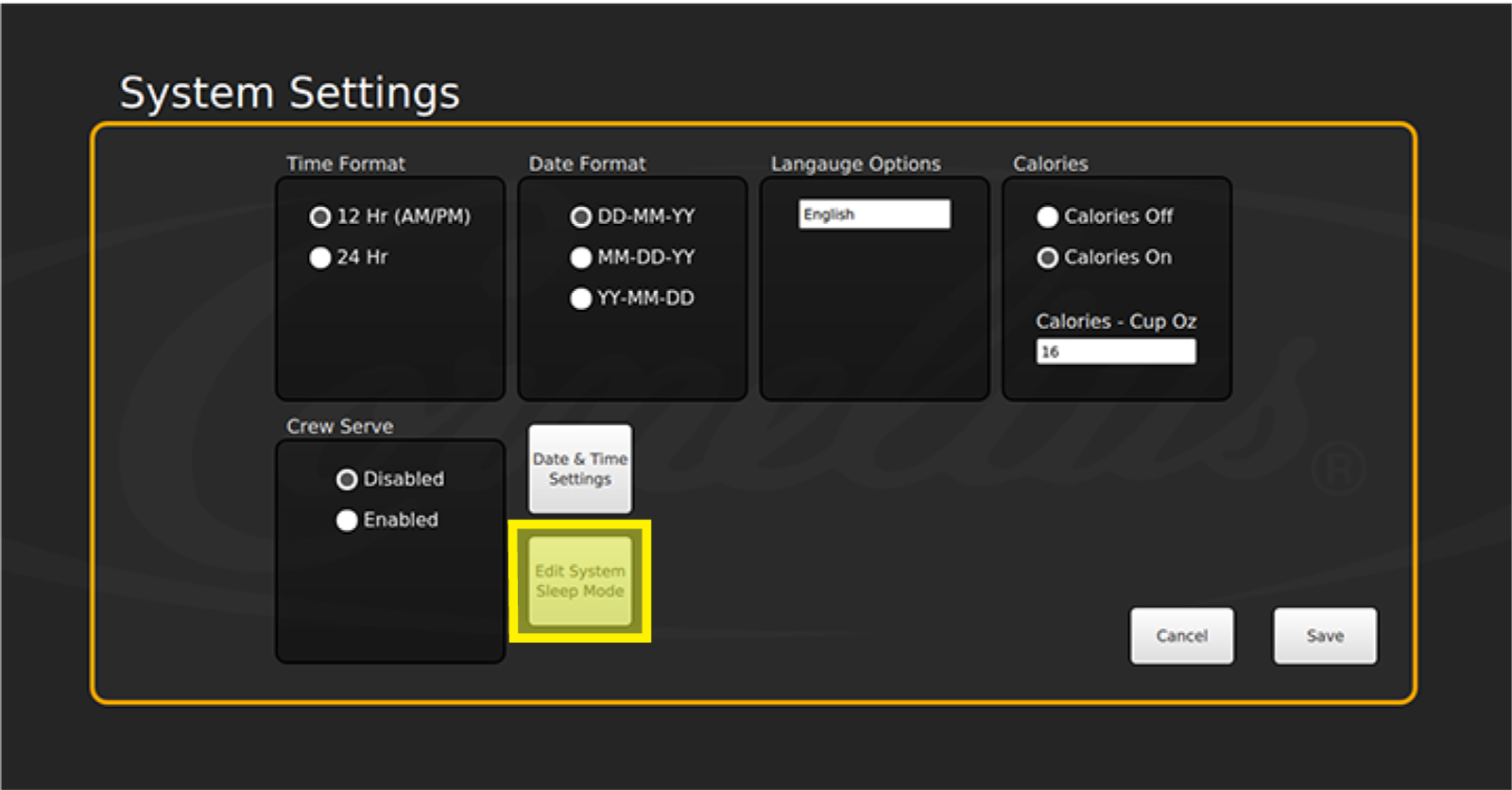
Also in the System Settings screen, you may set time periods for the IDC Pro to enter sleep mode, which puts the screen on standby during set hours to preserve the life of the screen.
When the IDC Pro is in Sleep Mode, nothing appears on the screen until the screen is touched. Touching the screen while in sleep mode will disable sleep mode for as long as the screen is being used. After 1 minute of not touching the screen, it will return to sleep mode.
-
Enable Sleep Mode
To set the sleep mode time periods:
- Select Edit System Sleep Mode to enable sleep mode
- While in the Edit System Sleep Mode screen, select the Enable sleep mode check box

-
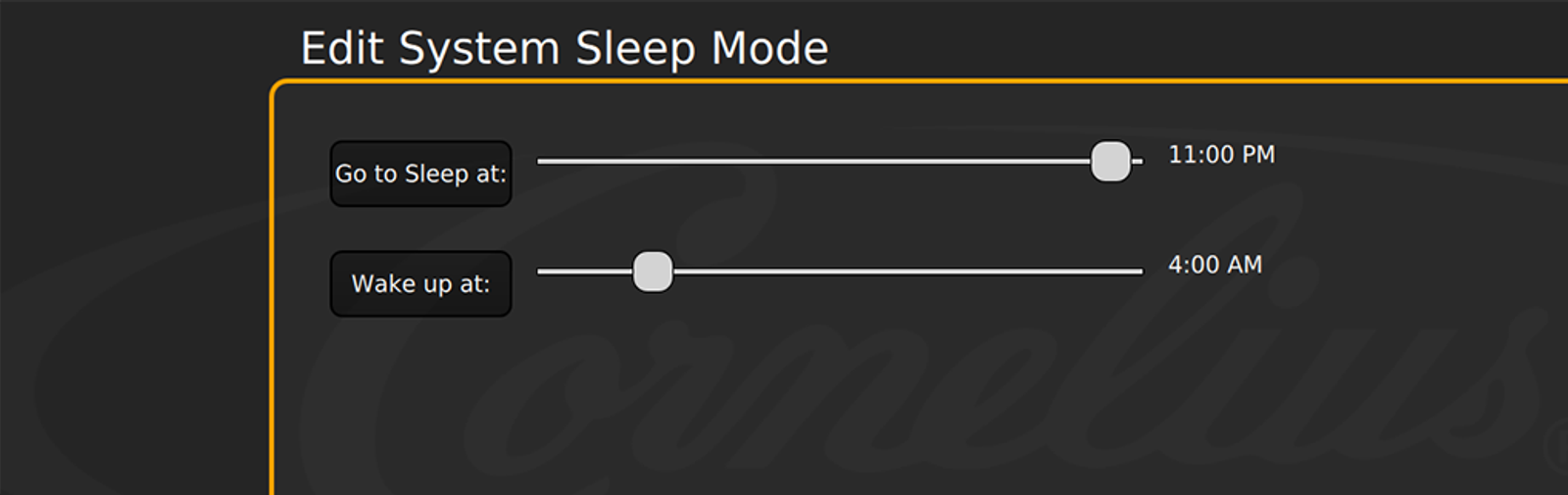
Edit System Sleep Mode
Then, adjust the time bar to display the time of day you’d like the IDC Pro to go to sleep and wake up.
Note: Be sure wake time is set for ½ hour before opening.
When setting the sleep mode, it should be set for ½ hour after closing.
- Select Save once completed
- To disable the sleep mode settings, select the Disable sleep mode box in the bottom left of the screen