Sales Data
IDC Pro Pocket Guide — Operation — Manager's Level Menu: Service Level 2
-
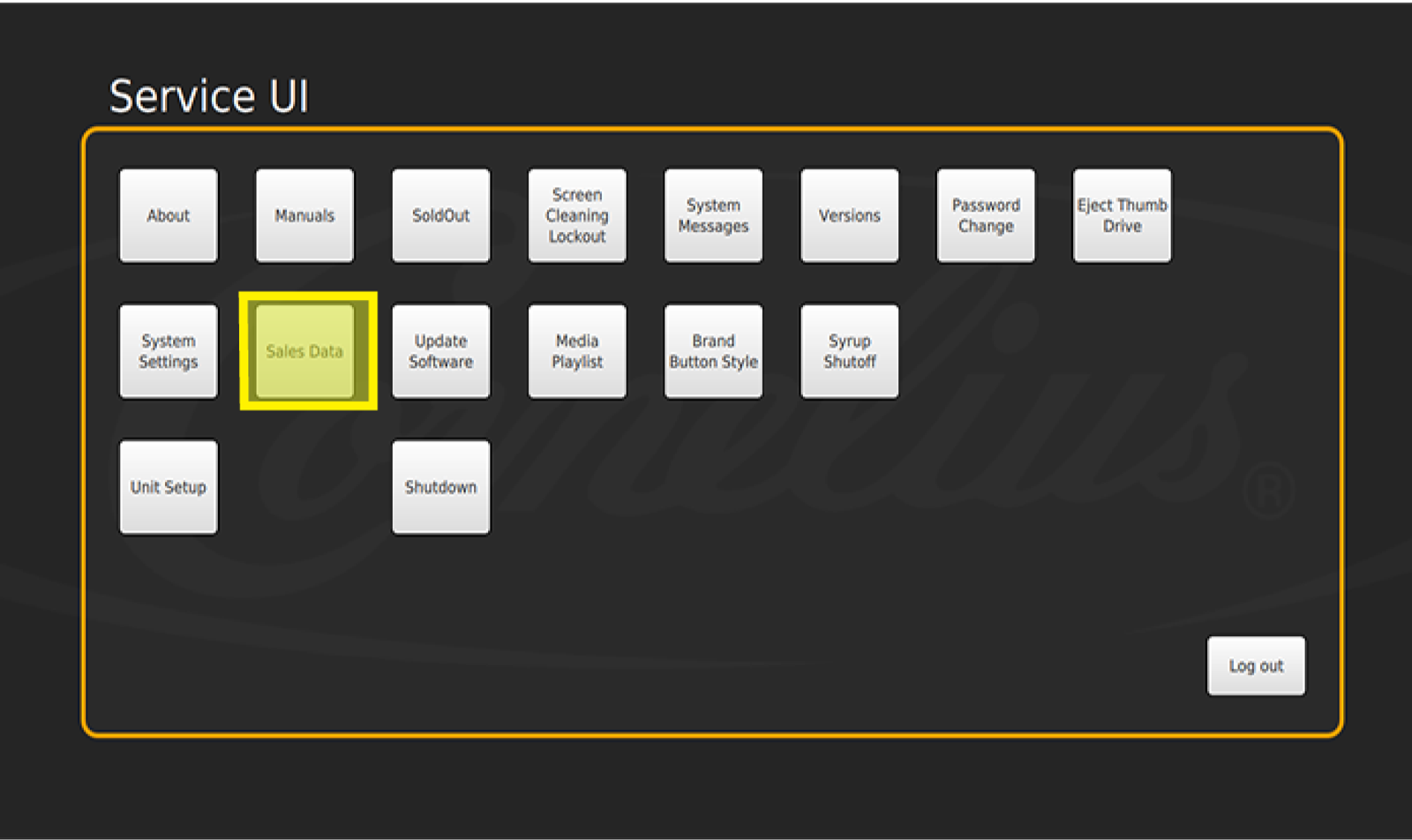
Select Sales Data
You are able to view the number of finished drinks and total quantity of drinks poured by each specific brand and flavor shots in the Sales Data screen, which is located in the 2nd row of the Manager’s Service screen.
To view and export the data to a USB flash drive, follow these steps:
Step 1: Select the Sales Data button, which allows you to view the Sales Data screen.
-
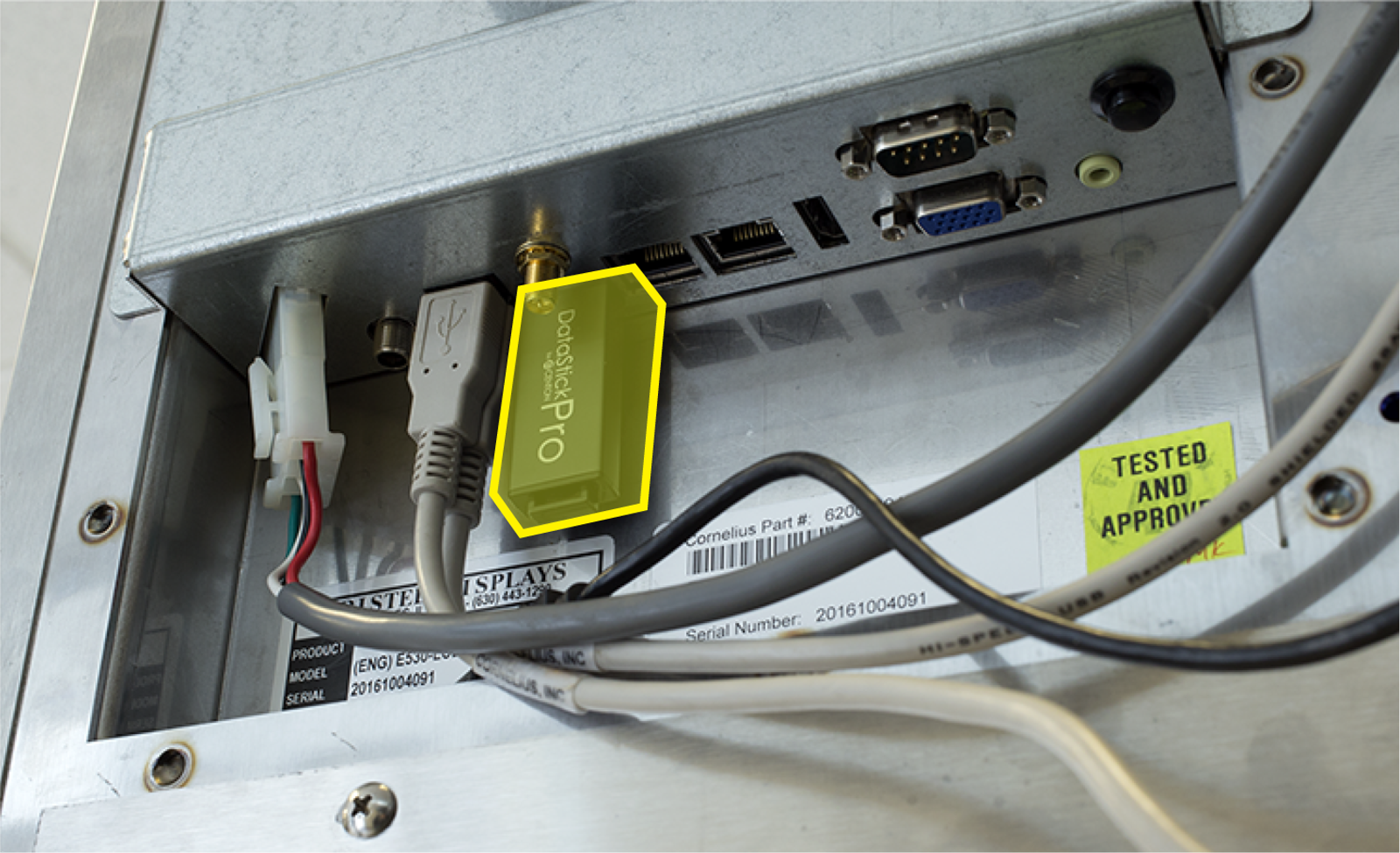
Insert USB
Step 2: To export the data, insert a USB flash drive. Do so by first removing the black USB cable from the back of the screen. Then insert your USB flash drive into to the same USB port.
-
Export Data
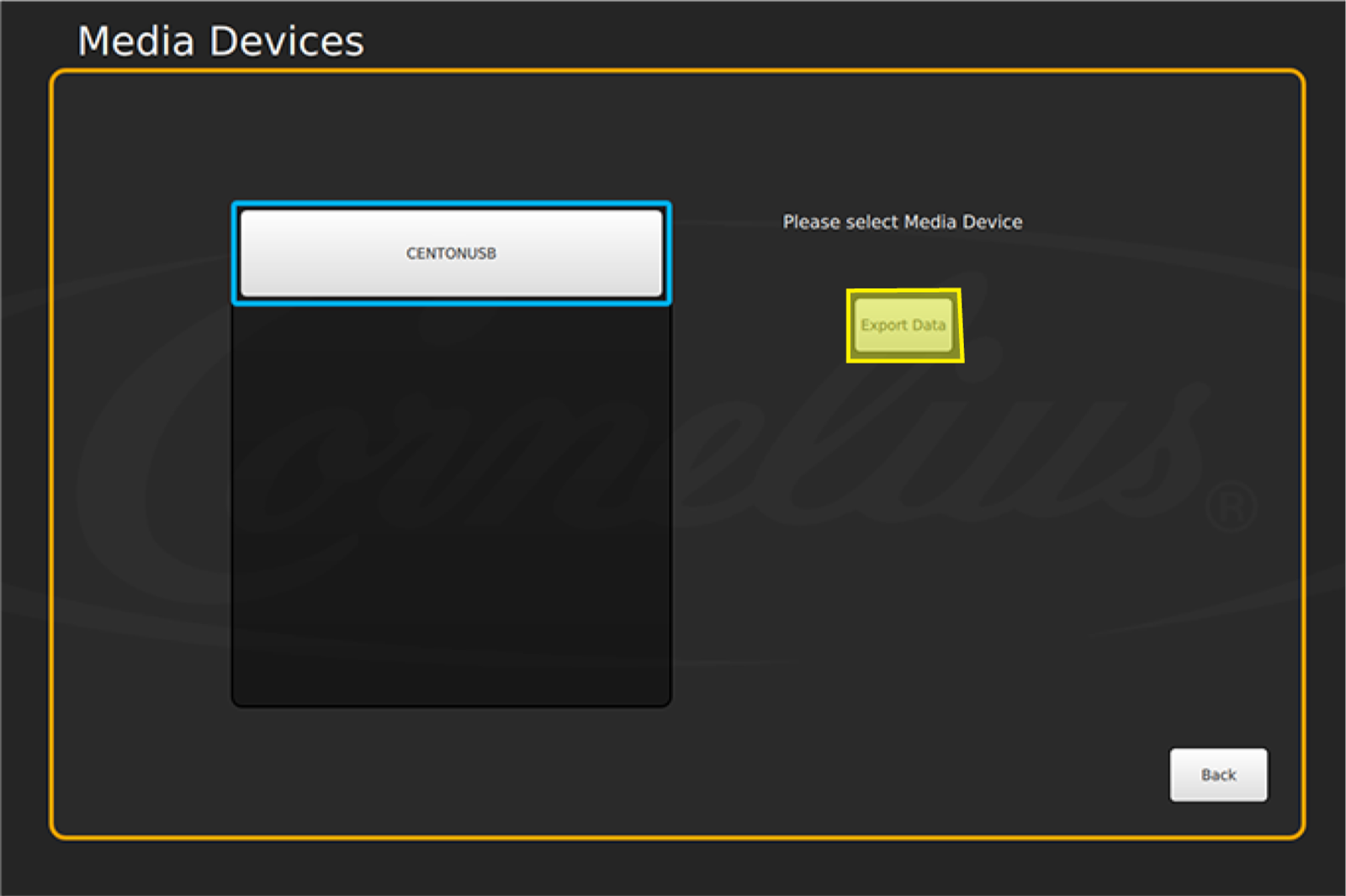
Step 3: The title of the USB flash drive appears on the Media Devices screen.
Select the USB flash drive, then select Export Data.
“Marketing Data Exported Successfully” appears at the bottom of the screen once the data is successfully exported.