Coverflow Order/Brand Button Style
IDC Pro Pocket Guide — Operation — Manager's Level Menu: Service Level 2
-
Home Screen Coverflow
Once you have mapped your brands in the Brand Mapping screen, you are able to adjust the order which they display on the Home screen coverflow.
-
Select Coverflow Order or Brand Button Style
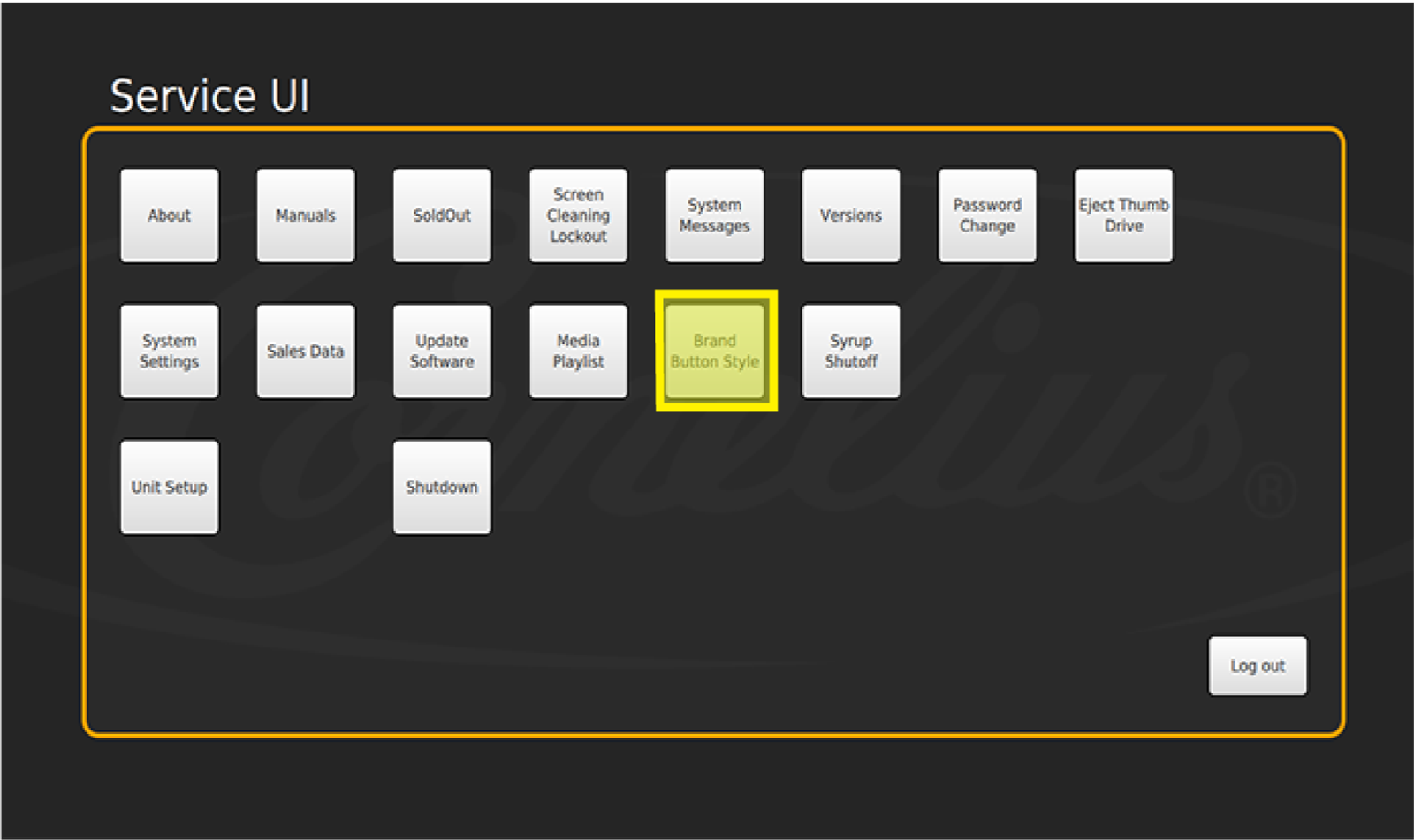
Select Coverflow Order or Brand Button Style in the Service menu to bring up the current display order of syrup brand icons for the left and right nozzles.
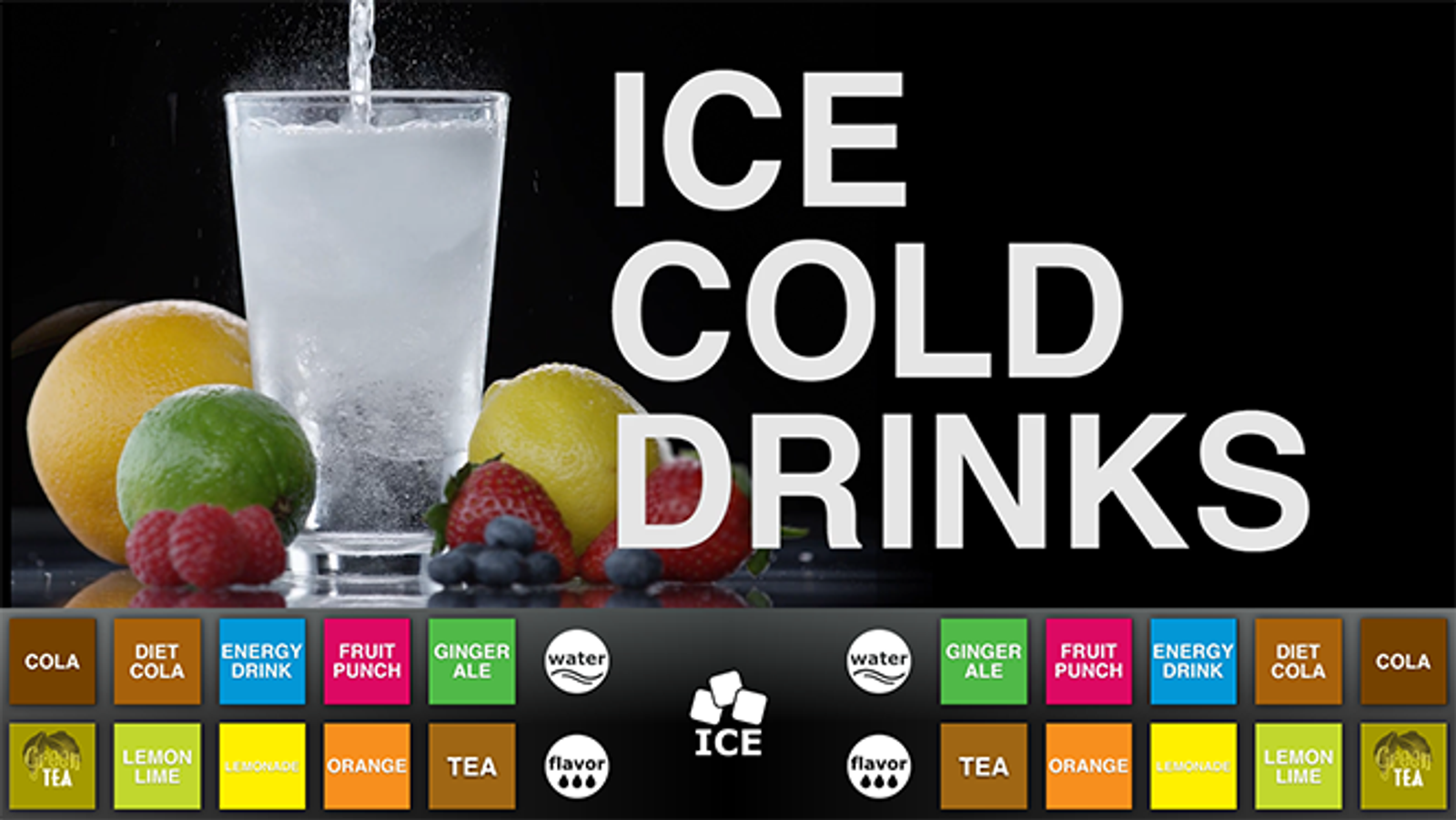
In the top left of the screen you can choose to have brands displayed in the style of a grid or coverflow. Grid style will display in the order shown here.
-
Coverflow Order Screen
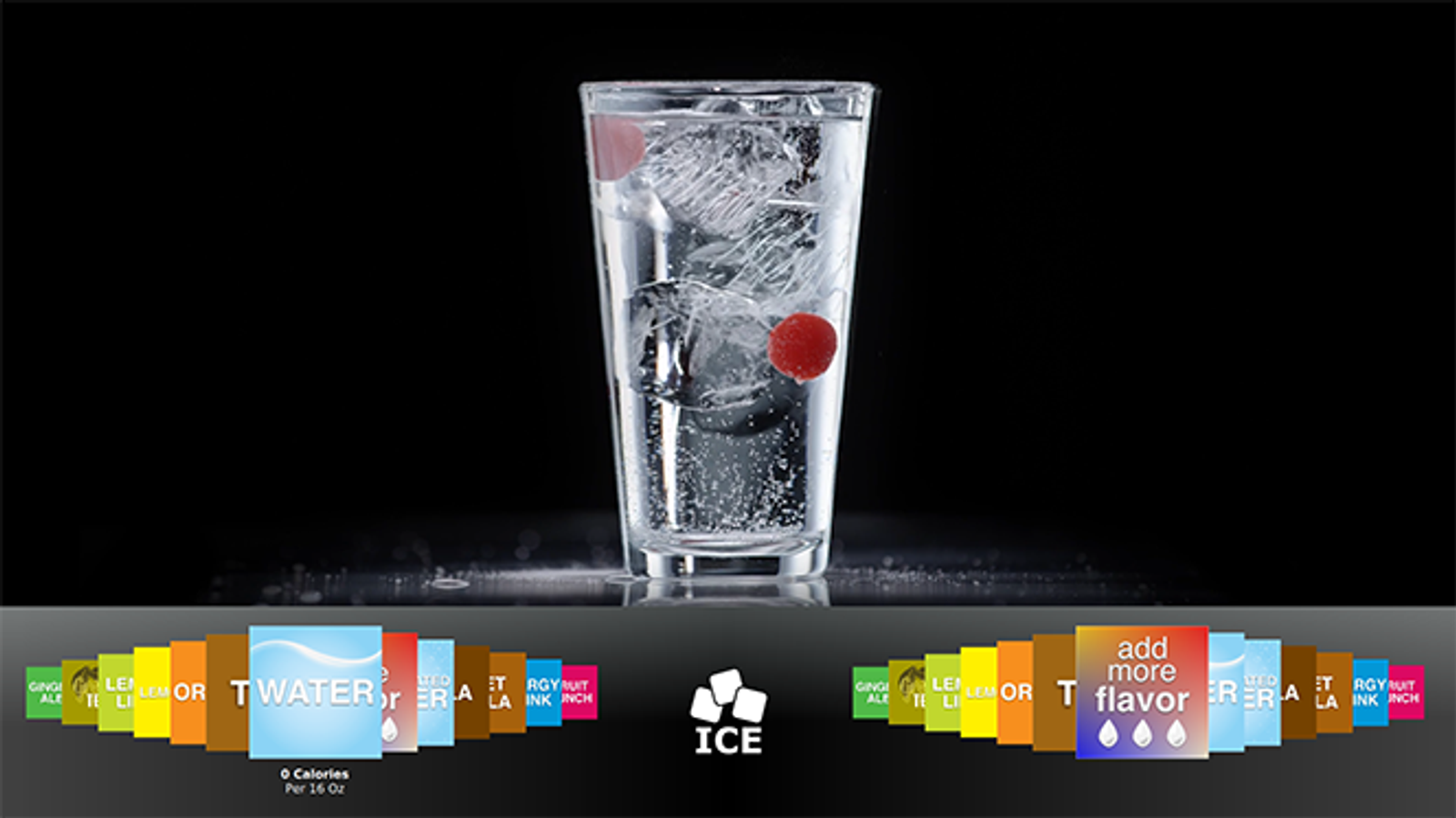
Coverflow style will display in the order shown here. Coverflow order automatically resets to the order shown on the Coverflow Order screen after a customer completes making a drink selection.
-
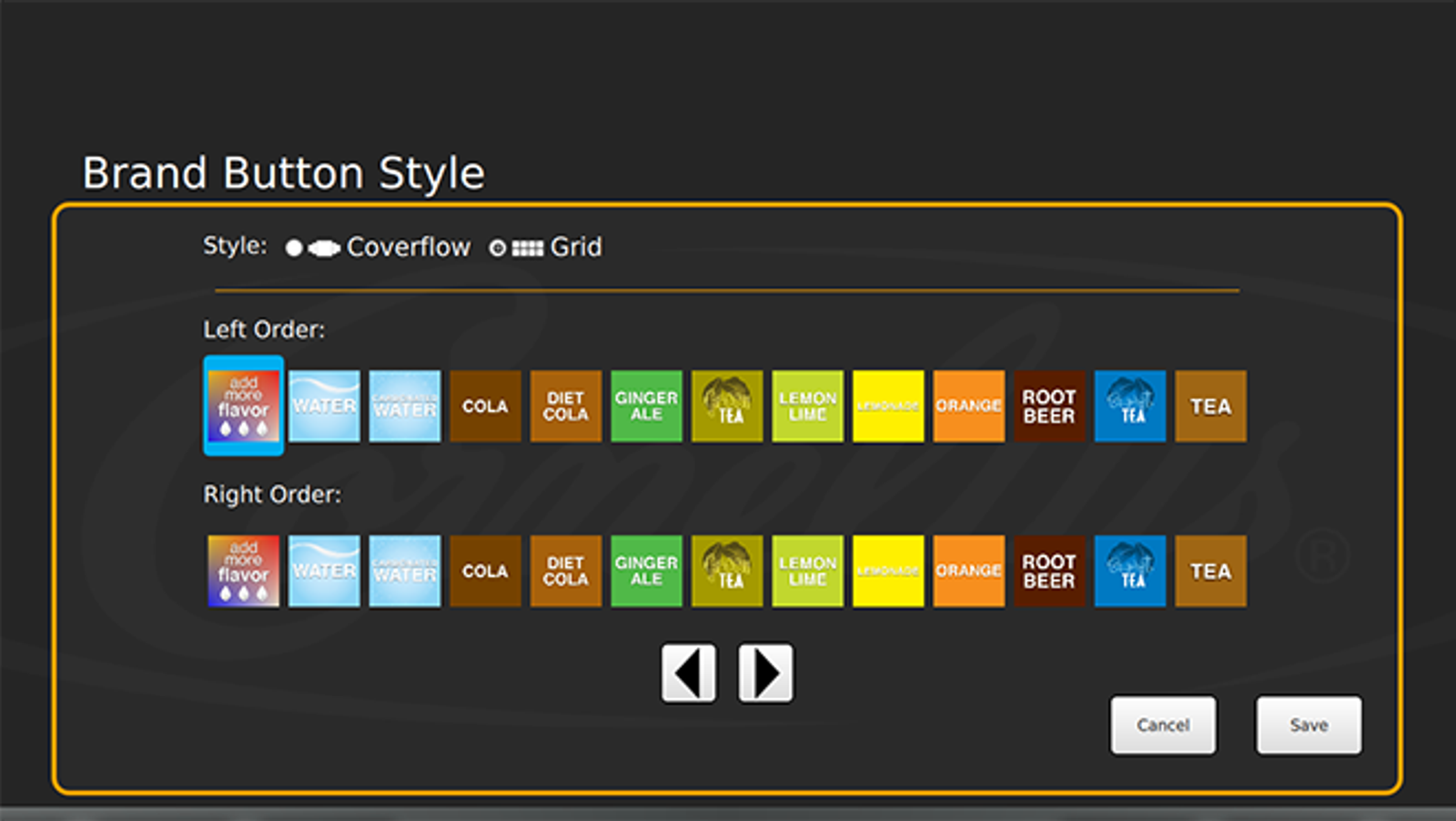
Brand Icon Order
The syrup brand icon listed furthest to the left on each nozzle indicates which brand icon will be displayed first (front & center) on the main screen as the customer makes a selection. As you move to the right, the icons arrange in order behind the first.
Note: This only affects the coverflow layout.
-
Coverflow Order Example
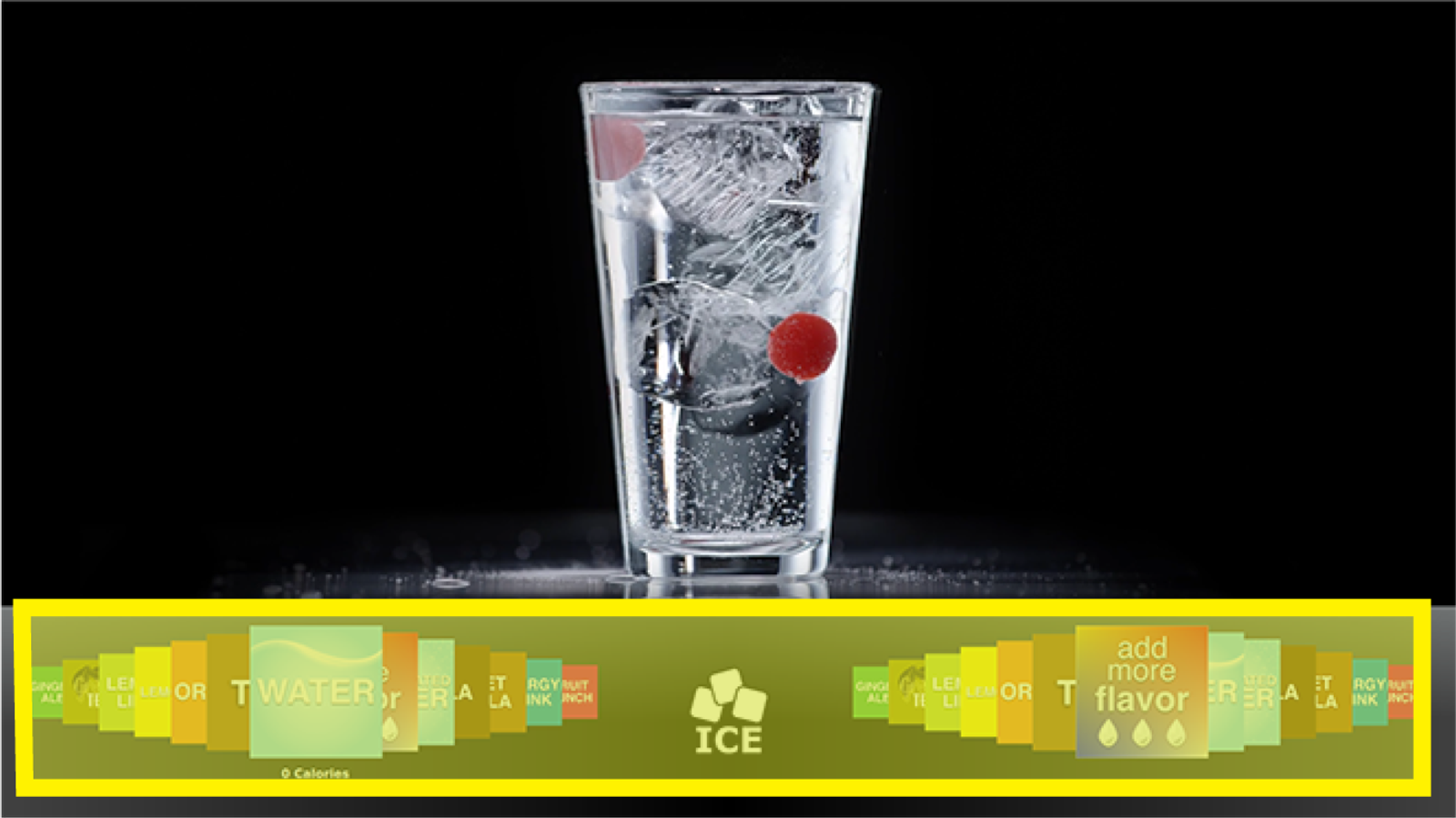
This is an example of how the coverflow order shown here will appear on the main screen.
-
Rearranging Coverflow Order
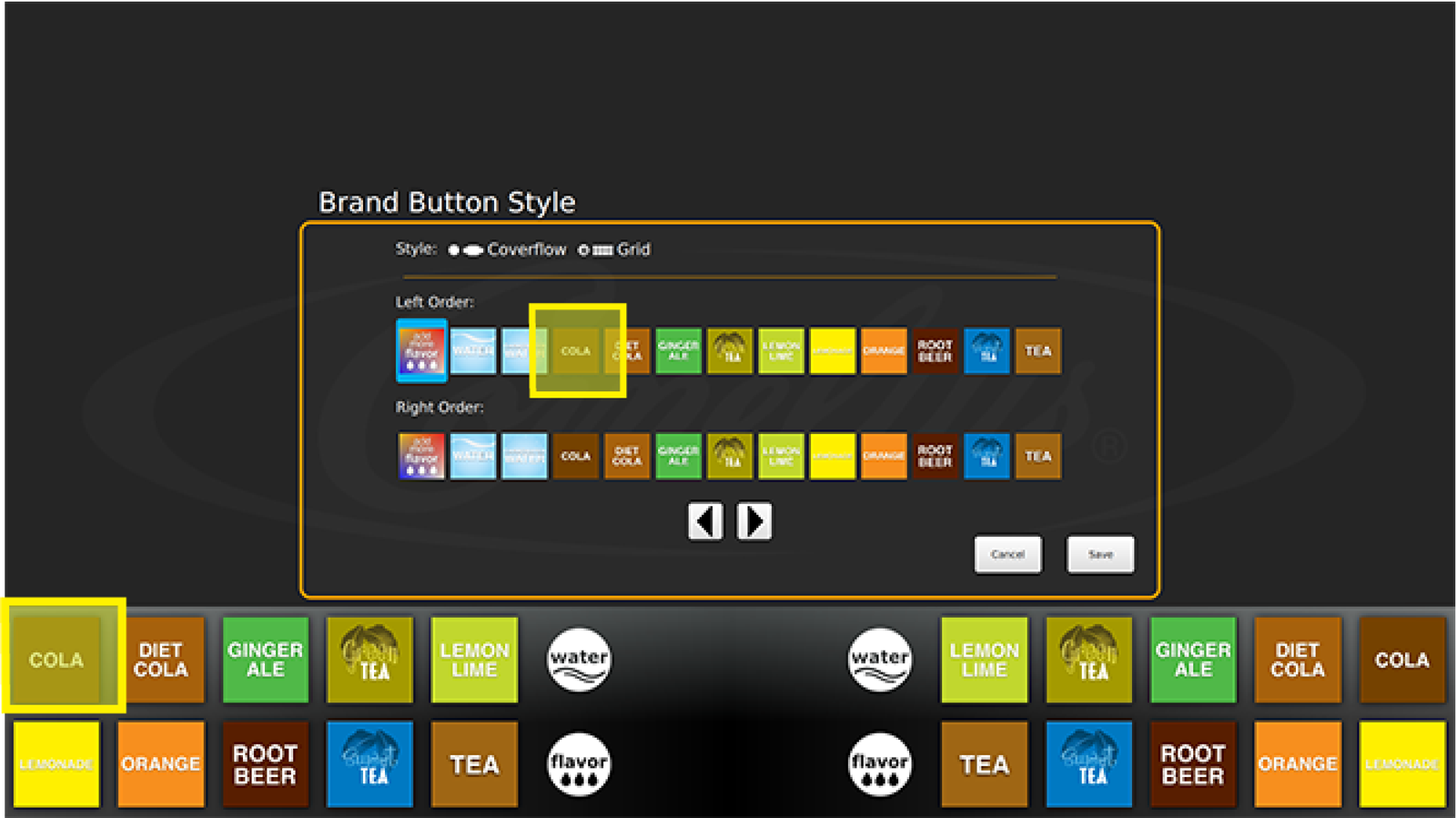
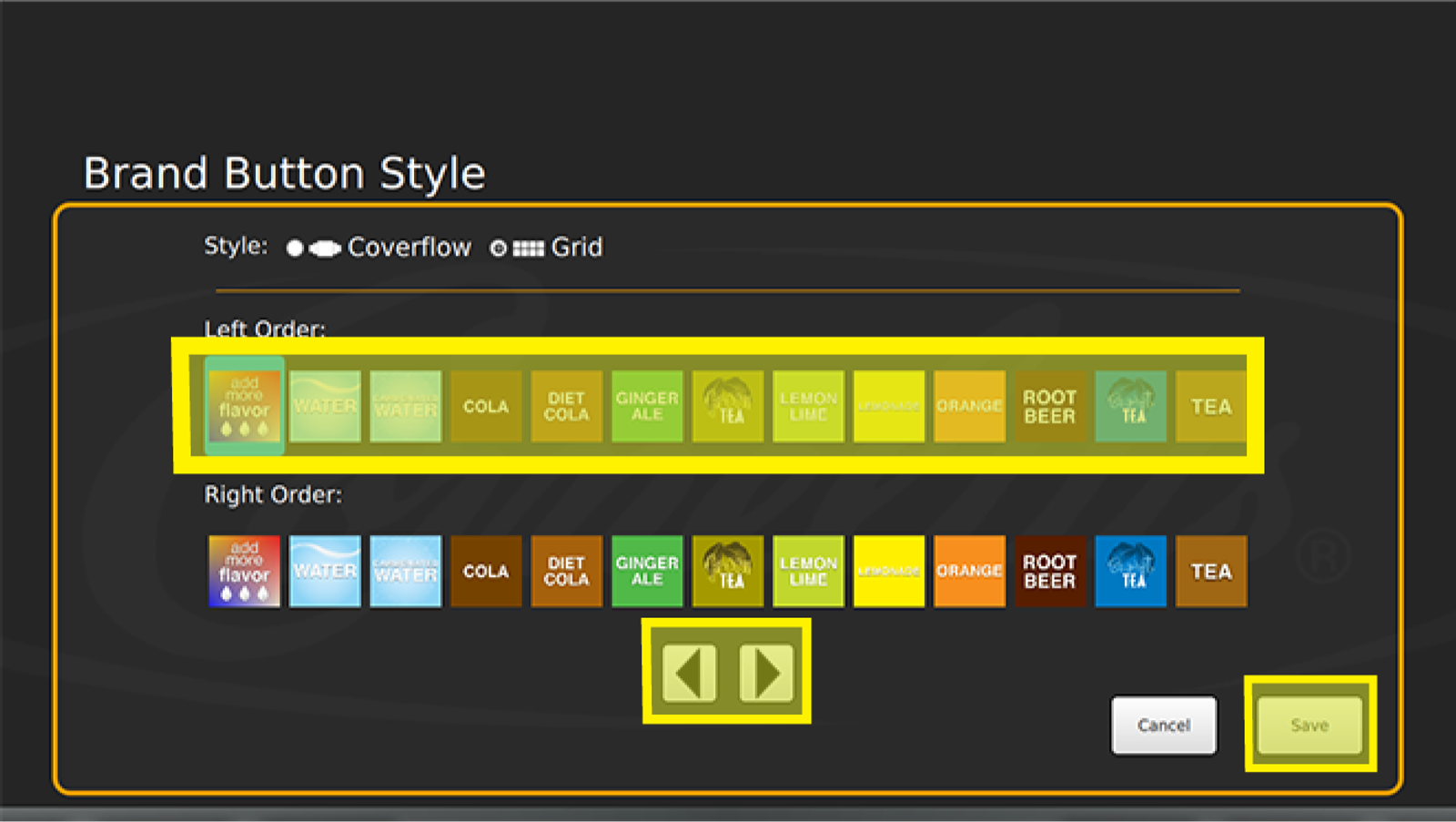
To rearrange the order of the coverflow, select the brand icon you would like to move and use the right/left arrow symbols to position your selected brand where you would like it displayed. In the example, we selected Cola and moved the icon to be displayed first (front & center).
The bottom image is how the coverflow order will appear on the main screen. Save the coverflow order by pressing Save.
-
Choosing Coverflow Layout
There is the option to have a scrolling coverflow or to have a static grid coverflow showing all images on the screen. You can select either one by selecting the Grid or Coverflow option in the Brand Button Style screen.
The coverflow layout will be displayed at the bottom of the screen showing you how it will look once you return to the Home screen.